

Appearance
Update Your Brand Materials
Brand materials are the documents, links, videos, and images that define your brand identity.
As your company evolves, your brand materials should too.
Outdated materials create outdated Brand DNA and degraded content generation.
Keep them fresh.
When to Update Brand Materials
When you rebrand
If you've updated your logo, colors, visual identity, or messaging:
- Replace old logo with new one
- Remove old brand guidelines
- Upload new brand guidelines
- Remove outdated website links
Rebranding is the biggest trigger for material updates.
When your brand guidelines change
If you've refined or expanded your guidelines:
- Logo specifications
- Color palette
- Typography
- Voice and tone guidance
Upload the updated guidelines document.
After major milestones or announcements
If you've achieved something significant:
- Raised funding
- Hit revenue milestone
- Won major customer
- Launched new product
Update links to your website if it reflects these changes.
Add new case studies or success stories as materials.
When your website significantly changes
If you've redesigned your website or rewritten homepage/services copy:
- Update website links to reflect current URL structure
- Re-upload key pages if you previously uploaded PDFs or images of them
Current, accurate links matter.
Old URLs are noise.
Quarterly house cleaning
Every 90 days, review your materials.
- Are links still working?
- Are documents current?
- Do they reflect your brand today?
Remove what's outdated.
Keep what's current and relevant.
How to Update Brand Asset Vault
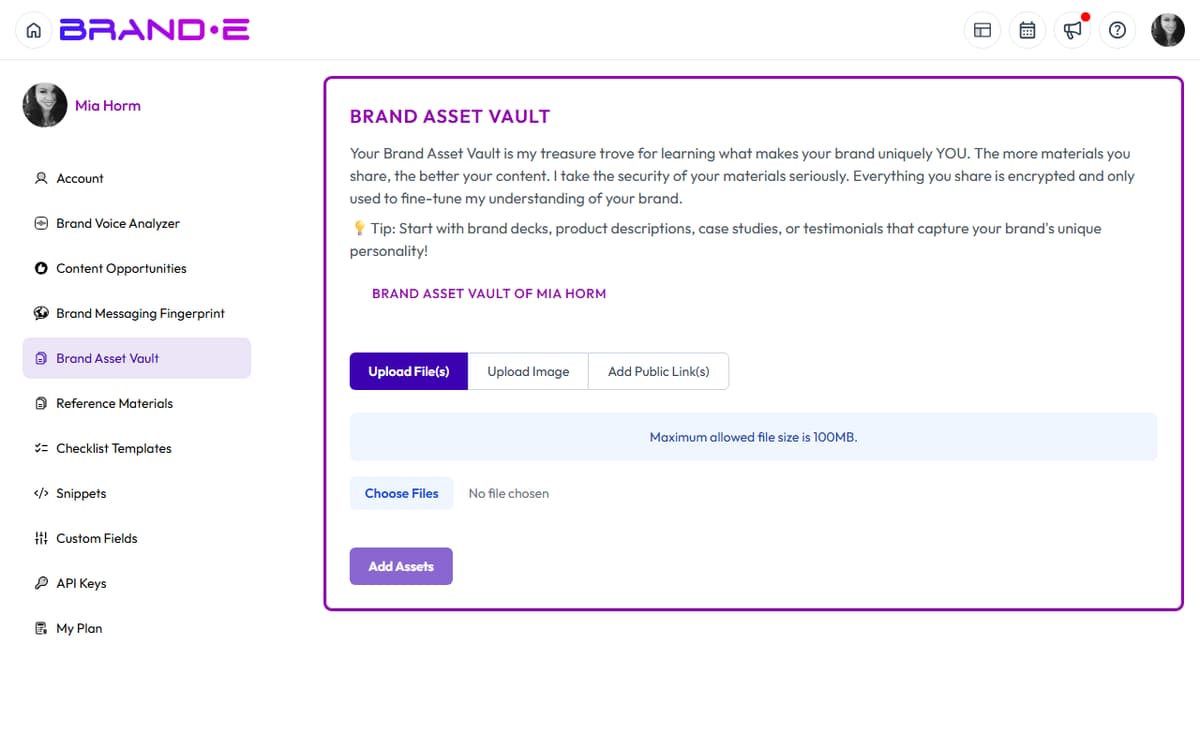
1. Navigate to Brand Asset Vault
Go to Account → Brand Asset Vault.
You'll see all uploaded materials organized by type.
2. Remove Outdated Materials
Click on a material, then Delete or Remove.
Items to remove:
- Old logo versions (before rebranding)
- Old brand guidelines (replaced by newer version)
- Outdated website links (broken or no longer relevant)
- Old marketing materials (from 2+ years ago)
- Competing examples (if you have two versions, keep only the best)
3. Add New Materials
Click Add Material or +.
Choose a type:
- Drag and drop file directly
- Paste a link to a URL
- Browse and select from your computer
4. Label Clearly
Add a label so you remember:
- Date or version ("Brand Guidelines v4 - 2024")
- Source ("Website Homepage" or "Founder Intro Video")
- Context ("New rebranding materials" or "Product demo")
5. Verify Materials Are Current
After adding, verify:
- Links are publicly accessible (not behind login)
- Files open correctly
- Content is the version you intended
6. Test Output
After updating, create a test project.
Do generated images look more on-brand?
Is content more aligned with your current identity?
If not, you may need more or better materials.
Examples of Material Updates
Update: Logo Change
Remove:
- Old logo PNG files
- Old brand guidelines mentioning old logo
Add:
- New logo in multiple formats (PNG, SVG)
- Updated brand guidelines with new logo specs
Why: New logo signals new identity. Brande.ai should reference current logo in image generation.
Update: Website Redesign
Remove:
- Links to old website pages
- Screenshots of old design
Add:
- Links to new website pages
- New brand guidelines if visual identity changed
- New case study or testimonial if you updated them
Why: Brande.ai draws voice and positioning cues from your website. Outdated links provide outdated cues.
Update: Rebranding
Remove:
- All old brand materials
- Links to old website version
- Old logo, colors, typography specs
Add:
- New brand guidelines PDF
- New logo
- Updated website links
- New video or content reflecting new brand voice
Why: Complete rebranding requires complete material update. Mixing old and new confuses Brande.ai.
Update: New Case Study or Success Story
Remove:
- Old or underperforming case studies
Add:
- New customer success PDF or link
- New testimonial video or quote
- New website case study page
Why: Recent success stories are more credible than old ones. They also reflect current customer profile.
Best Practices for Material Updates
Keep 3–5 high-quality materials minimum
Don't strip materials down to one.
Variety helps Brande.ai understand your brand comprehensively.
Aim for:
- 1–2 versions of logo
- 1 current brand guidelines document
- 2–3 website links (homepage, services, case studies)
- 1–2 visual style examples (past marketing, brand video)
- 1–2 company or founder materials (handbook, intro video)
Prioritize brand guidelines
If you have to choose what to keep, prioritize:
- Current brand guidelines PDF
- Current logo
- Current website homepage link
These three alone give Brande.ai solid Brand DNA.
Remove duplicates
If you have three versions of the same logo, keep only the best one.
Multiple similar materials create confusion, not clarity.
Add source context
When uploading, note what the material is and when it's from.
Good labels:
- "Brand Guidelines v4 - January 2024"
- "Website Homepage - Current (March 2024)"
- "Founder Intro Video - Recorded March 2024"
- "Case Study: ABC Corp - Recent Customer"
Poor labels:
- "document.pdf"
- "screenshot"
- "video"
Context helps you maintain your materials over time.
Update seasonally
Don't wait for major changes.
Quarterly reviews prevent accumulation of outdated materials.
Spring, summer, fall, and winter are good checkpoints.
Seasonal updates = seasonal content relevance.
Troubleshooting Material Updates
Link doesn't work:
- Verify the page is public (not behind login)
- Check if URL changed after a website redesign
- Try removing and re-adding the link
File won't upload:
- Check file size (max 100 MB)
- Check file format (PDF, image, video, audio supported)
- Try a different file
Brande.ai seems to ignore updated material:
- It takes 30 seconds to a few minutes to process new materials
- Refresh the page and create a new project
- Materials should appear in next generation