

Appearance
Use Quick Actions and Shortcuts
Keyboard shortcuts eliminate friction. You don't switch tools, click multiple times, or lose focus.
Press a key combination and immediately create a project, jump to account settings, or find what you need—without touching your mouse.
Keyboard Shortcuts Reference
Learn these shortcuts and watch your workflow accelerate:
| Shortcut | Action | Use Case |
|---|---|---|
| Alt+N / Ctrl+N (Mac) | New Project | Create a content project from anywhere |
| Alt+S / Ctrl+S (Mac) | Toggle Sidebar | Hide sidebar to maximize editor space |
| Alt+Shift+P / Ctrl+Shift+P (Mac) | Project Search | Search your projects by name |
Note: On Mac use Ctrl (Control key). On Windows and Linux use Alt. There are no Cmd+ shortcuts in Brande.ai today.
Create a New Project (Ctrl/Alt+N)
Press Alt+N (Windows/Linux) or Ctrl+N (Mac) from anywhere in the app.
The New Project dialog opens immediately.
Why this matters:
- Creates a new project without navigating to the Projects page
- Works from the dashboard, calendar, account settings, or anywhere else
- Speeds up your workflow: idea → dialog → template selection in 2 seconds
Usage:
- Read a Content Agent recommendation
- Press Alt+N (Windows/Linux) or Ctrl+N (Mac)
- Select the template that matches the recommendation
- Fill variables and start creating
No page navigation needed.
Toggle Sidebar (Alt+S / Ctrl+S on Mac)
Press Alt+S (Windows/Linux) or Ctrl+S (Mac) to hide or show the left sidebar.
Why this matters:
- Maximizes your editor space when writing or editing content
- Quick way to focus on the task without UI distraction
- Useful on smaller screens
Usage:
- Working on a long-form project? Hide the sidebar to see more content.
- Need to navigate to a different project? Show the sidebar and click.
Project Search (Alt+Shift+P / Ctrl+Shift+P on Mac)
Press Alt+Shift+P (Windows/Linux) or Ctrl+Shift+P (Mac) to open Project Search.
A search box appears allowing you to type a project name and filter your projects.
Why this matters:
- Find projects by name instantly
- No need to navigate to Projects page or scroll through folders
- Works from anywhere in the app
Usage:
- You remember creating a "LinkedIn Post — Hiring Content" project
- Press Shift+P
- Type "hiring"
- Results show matching projects
- Click to open
Keyboard Shortcuts Modal
To view all keyboard shortcuts, click your profile icon (top right) and select Keyboard Shortcuts.
A modal appears showing:
- All available shortcuts
- What each shortcut does
- Platform-specific variations (Mac vs. Windows)
This is your reference guide. Bookmark it or print it.
Access Keyboard Shortcuts:
- Click your profile icon (top right)
- Select Keyboard Shortcuts from dropdown
- Modal opens
- Review and memorize
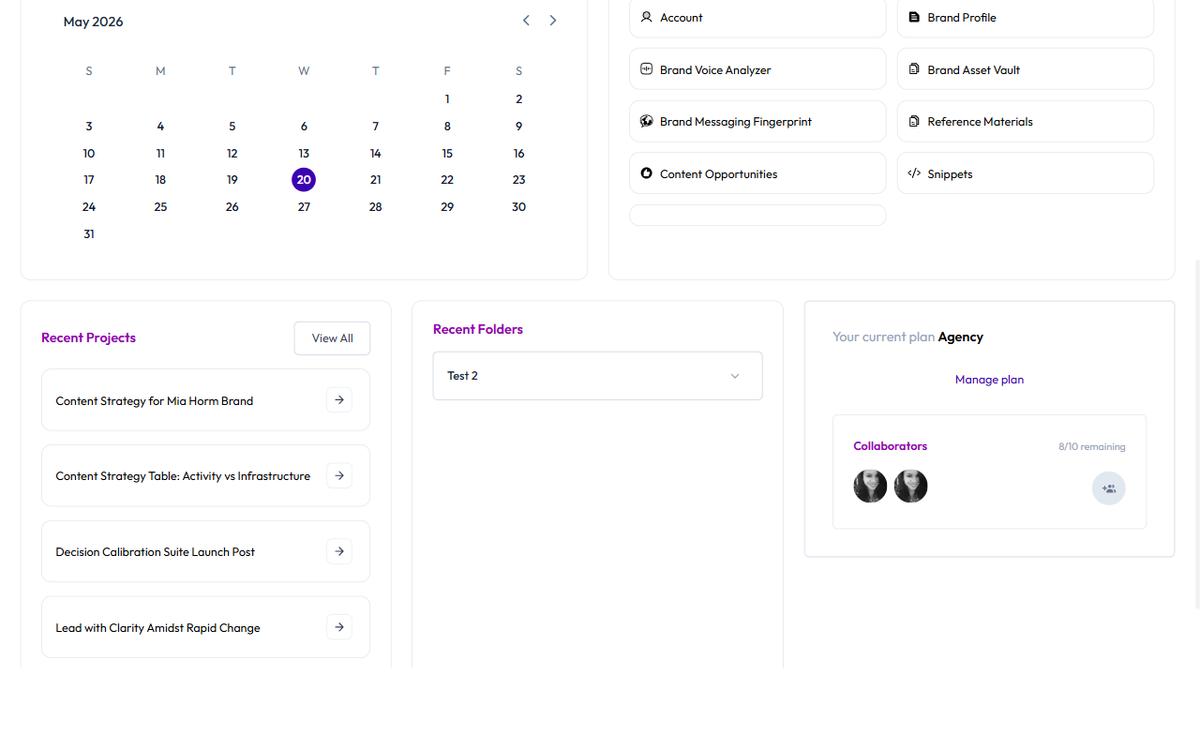
Dashboard Quick Action Buttons
In addition to keyboard shortcuts, the dashboard has visual buttons for common tasks:
New Project Button Click the New Project button on the dashboard (or press Ctrl/Alt+N).
New Brand Voice Button Click New Brand Voice to create a new voice profile for this brand.
New Reference Material Button Click New Reference Material to upload examples that improve Brand DNA.
New Brand Asset Button Click New Brand Asset to store logos, guidelines, and visual standards.
These are mouse alternatives to keyboard shortcuts. Use whichever fits your workflow.
Building Shortcut Habits
Day 1-2: Learn
- Review the keyboard shortcuts list
- Print or screenshot it
- Put it next to your workspace
Day 3-5: Practice
- Consciously use shortcuts for your 3 most common tasks:
- Alt+N (New Project)
- Alt+S (Toggle Sidebar)
- Alt+Shift+P (Search)
- Force yourself to use them instead of clicking
Week 2+: Automatic After a week, shortcuts become muscle memory. You'll stop thinking and just press.
This saves 30 seconds per task. Over a year, that's 20+ hours of recovered productivity.
Shortcuts by Workflow
Morning Routine:
- Navigate to Dashboard from the sidebar
- Review Content Agent recommendations
- Alt+N / Ctrl+N (create a project from a recommendation)
- Fill variables and start creating
Throughout the Day:
- Alt+Shift+P / Ctrl+Shift+P (search for a project to continue)
- Alt+S / Ctrl+S (toggle sidebar for focus)
Weekly Planning:
- Go to Dashboard from the sidebar
- View Content Calendar
- Click profile icon → Account to update Brand Profile if strategy changed
Troubleshooting
Q: The keyboard shortcut isn't working. A: Make sure you're using the right modifier key for your OS:
- Windows/Linux: Alt (e.g., Alt+N for New Project)
- Mac: Ctrl (Control key, e.g., Ctrl+N for New Project)
Check the Keyboard Shortcuts modal in the app for the full list per platform.
Q: I can't remember all the shortcuts. A: Start with the two most important:
- Alt+N / Ctrl+N (New Project) — used constantly
- Alt+Shift+P / Ctrl+Shift+P (Project Search) — used multiple times daily
Master these two, then add Alt+S (sidebar toggle) as you go.
Q: The search shortcut opens the browser's search instead. A: Project Search uses Ctrl+Shift+P on Mac and Alt+Shift+P on Windows/Linux. There is no alternative binding for the same action — if your browser steals the shortcut, click the search icon in the sidebar instead.