

Appearance
File Upload Problems
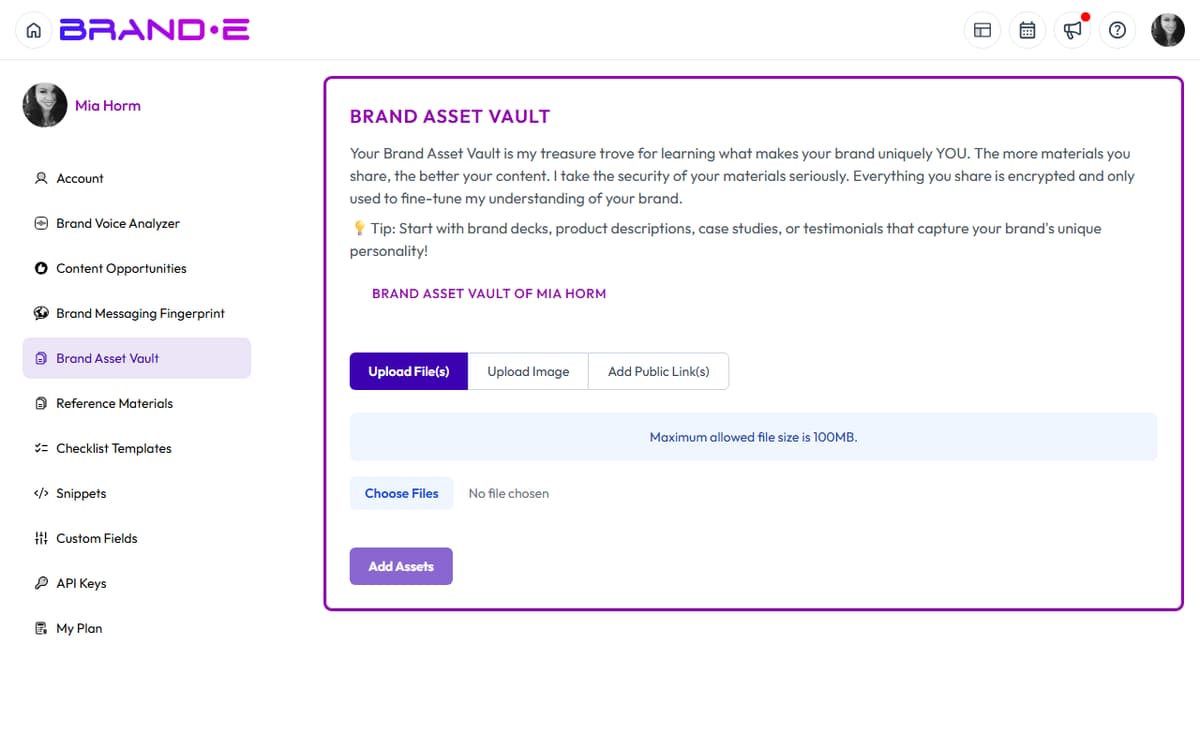
Upload Fails with "File Size Limit Exceeded"
Direct Answer: Your file is larger than the 25MB limit. Compress it or split it into smaller files.
How to Fix This
Check file size
- Right-click the file and select Properties (Windows) or Get Info (Mac)
- Confirm the size is under 25MB
Compress the file
- For PDFs: Use online compression tools (ILovePDF, SmallPDF)
- For Office documents: Remove embedded media, then re-save
- For images: Reduce dimensions and quality in an image editor
Split large documents
- If you have a 50MB PDF, split it into two 20MB files
- Upload each file separately and analyze them in sequence
Convert to a smaller format
- DOCX files are often smaller than PDF
- TXT files are minimal size
If This Doesn't Work
- Verify actual file size — Some tools show incorrect sizes
- Try a different file format — Convert PDF to DOCX or vice versa
- Contact support — We can manually increase limits for enterprise plans
Upload Fails with "File Type Not Supported"
Direct Answer: The file format isn't supported. Brande accepts PDF, DOCX, TXT, and CSV only.
How to Fix This
Convert the file to a supported format
- DOC → Convert to DOCX (open in Word, Save As)
- RTF → Convert to DOCX or PDF
- XLS/XLSX → Convert to CSV (File > Save As > CSV)
- PAGES → Export as DOCX or PDF from Pages app
- Google Docs → Download as DOCX or PDF
Copy and paste content instead
- If the file is small, copy the text and use text input instead
- This works for any format that contains readable text
Check file extension
- Confirm the file actually ends in .pdf, .docx, .txt, or .csv
- Renaming won't work; you must convert the actual file
If This Doesn't Work
- Verify the conversion worked — Open the converted file to confirm it's readable
- Try online conversion tools — CloudConvert, Zamzar work for any format
- Contact support with the original file — We may be able to help with special formats
File Uploads Successfully But Content Isn't Analyzed
Direct Answer: The file was uploaded but the analysis didn't start. Refresh the page and try again, or use text input instead.
How to Fix This
Refresh the page
- Press F5 or Cmd+Shift+R to do a hard refresh
- Try uploading the same file again
Check for browser errors
- Open browser Developer Tools (F12)
- Look for red error messages in the Console tab
- Screenshot and send to support if you find errors
Try text input instead
- Copy the file content and paste it into the text field
- This bypasses file upload issues
"File Delete Error" When Trying to Delete an Upload
Direct Answer: The file is still being processed or there's a temporary permission issue. Try again in a few seconds.
How to Fix This
Wait 10-15 seconds
- Sometimes files take time to process before they can be deleted
- Refresh the page and try deleting again
Clear browser cache
- In Chrome: Settings > Privacy > Clear Browsing Data (select "Cached images and files")
- Reload the page and try deleting
Try deleting from a different browser
- Switch to Firefox, Safari, or Edge
- The original browser may have stale data
Manually remove from your account
- If a file persists, contact support with the filename
- We can remove it from the backend
If This Doesn't Work
- Try a force refresh — Ctrl+F5 (Windows) or Cmd+Shift+R (Mac)
- Sign out and back in — Session data may be corrupted
- Use incognito mode — Browser extensions sometimes interfere with deletion