

Appearance
Generate Website Copy That Converts
Your website is your always-on salesman. Generic website copy converts at 1%; brand-aligned website copy informed by your actual Brand DNA converts at 3–5x that rate. The Website Copy template generates multi-section, conversion-focused pages that speak directly to your audience's pain points and objections.
What Website Copy Template Generates
The Website Copy template produces structured website pages with:
- Hero section — Headline, subheadline, and primary CTA
- Value proposition — Why you're different and why it matters
- Feature or benefit sections — 3+ sections with supporting copy
- Social proof — Customer testimonial or trust indicator
- Secondary CTA — Call to action to move the reader forward
Output is a complete, ready-to-edit page you can drop into your CMS.
When to Use Website Copy Template
Use this template to create or update:
- Homepage (full page hero + value + features + CTA)
- Services or features page (describing what you offer)
- Pricing page (pricing context + plan descriptions + objection handling)
- Landing page (single conversion goal with supporting copy)
- Product page (feature descriptions + benefits + how to get started)
- "About" or company page (brand story + mission + team context)
- Case study or customer story page
Do not use for:
- Blog posts or thought leadership (use Long-Form Content)
- Social media posts (use LinkedIn Post or other social templates)
- Email campaigns (use Write from Scratch)
- Internal documentation (use Write from Scratch)
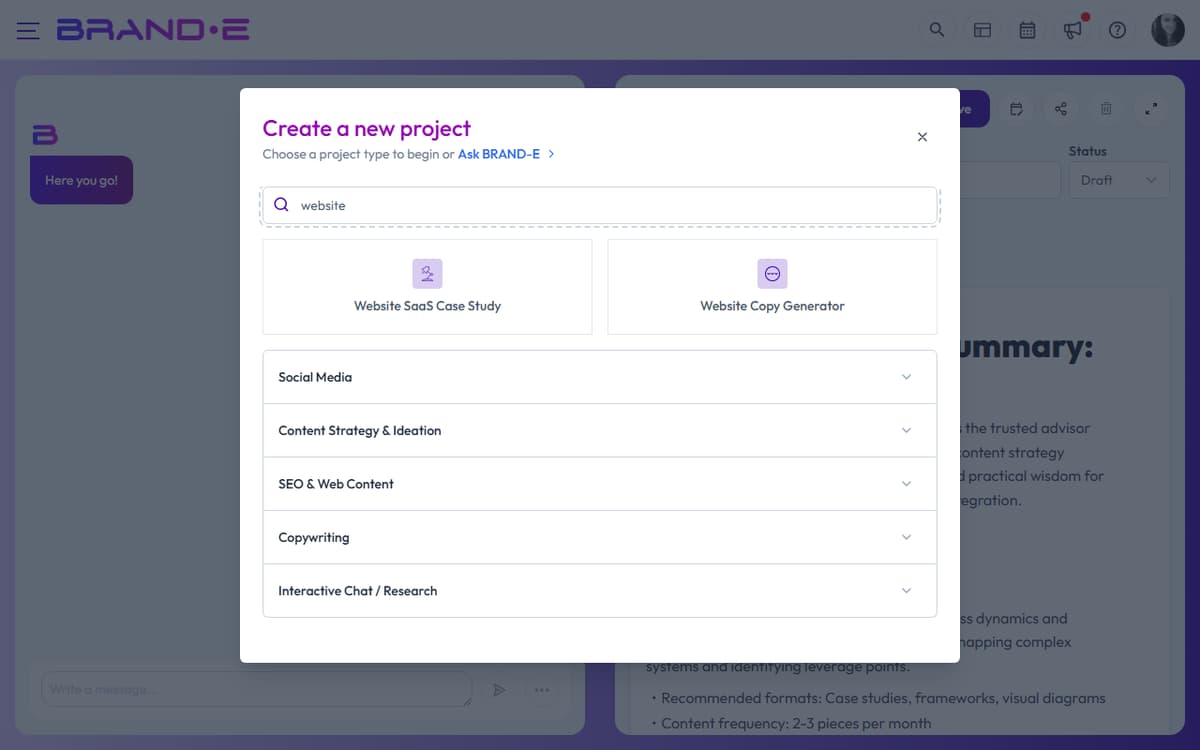
Step 1: Select Website Copy Template
In the New Project dialog:
- Search for "website" or browse the Website Copy category
- Click the Website Copy template card
The variables dialog opens.
Step 2: Configure Website Copy Variables
The Website Copy template asks for:
Page Type or Goal (required) What page are you creating? Example: "Homepage," "Services page," "Pricing page," "Product landing page"
Main Page Headline (required) The primary headline that appears above the fold. Should address your audience's main pain point or desired outcome. Example: "Scale Your Agency Without Scaling Your Team"
Page Description or Context (required) Describe what you want the page to communicate. What is the purpose? Who is the reader? What's the desired action? Example: "This is our homepage for fractional CMOs. The goal is to explain our service offering and move them to a discovery call."
Key Features or Benefits (optional) List 2–3 specific benefits or features you want emphasized. Example: "1. Pre-built content calendars, 2. Brand voice training included, 3. Weekly strategy calls"
Target Audience (required) Restate your primary audience so the copy speaks directly to them. Example: "VP of Marketing at Series A SaaS companies raising Series B"
Brand Voice (if available) Select which voice profile to use. The page copy will match that voice's tone and personality.
Include images (optional) Check to generate hero images, feature icons, or section imagery to accompany the copy.
Image Instructions (if enabled) Describe the visual style. Example: "Modern, minimal design. Use blues and grays. Show professionals collaborating, not generic stock photos."
Reference Material (optional) Select existing content (brand guides, competitor websites, previous pages) to reference for tone, style, or structure.
Folder (optional) Choose or create a folder to organize this project.
Step 3: Generate Page Copy
Click Done. The editor opens with a chat interface and the AI immediately begins generating your page copy.
The generation produces:
- A complete, editable webpage structure
- Sections you can expand, remove, or rearrange
- Copy that references your Brand DNA and audience
- Image placeholders (if you enabled images)
Step 4: Refine in the Editor
The generated copy appears in an EditorJS editor, a block-based interface where you can:
Edit sections: Click any text block to edit. Rewrite headlines, adjust messaging, add details.
Rearrange sections: Drag blocks to reorder sections. Move the CTA section higher if you want faster conversion.
Delete sections: Remove sections that don't fit your page goal.
Add new sections: Use the chat interface to request additional sections. Example: "Add a FAQ section addressing pricing objections."
Chat for refinement: In the chat panel, ask the AI to:
- "Make the headline more benefit-focused"
- "Add a customer testimonial"
- "Tone down the marketing language"
- "Add a secondary CTA after the features"
The AI rewrites sections based on your Brand DNA and maintains voice consistency.
Step 5: Review, Adjust Tone, and Export
Set project status: Change from Planning to Draft (work in progress), Review (ready for feedback), Approved (signed off), or Published (live).
Export the page: Click the Export menu (three-dot icon) to download:
- PDF — For sharing with stakeholders
- Word — For editing in Microsoft Word before publishing
Copy to CMS: The EditorJS format copies cleanly to most CMS platforms (Webflow, WordPress, etc.). Copy the text blocks and paste into your page builder.
Example: Homepage Generation
Scenario: You're a fractional CFO service for 5–20 person startups. You need a complete homepage.
Template variables:
- Page Type: "Homepage"
- Main Headline: "Financial Strategy for Founders Who Can't Hire a CFO Yet"
- Page Description: "This is our homepage. We want to establish credibility and move early-stage SaaS founders to a strategy call."
- Key Features: "Monthly financial dashboards, Cap table management, Series A readiness planning"
- Target Audience: "Technical founders at Series Seed to Series A SaaS companies"
- Include images: Yes
- Image Instructions: "Professional but approachable. Use muted blues and greens. Show diverse founders in modern office settings."
Result: A complete homepage with hero section, three feature sections explaining your core offer, a customer testimonial, and clear CTA to book a call. Images accompany each major section.
Refinement in chat:
- "Add a FAQ section addressing 'How much does this cost?'"
- "Make the features more specific—mention actual startup problems like runway planning"
- "Change the hero CTA from 'Schedule Call' to 'Get Started with a Free Audit'"
Each request generates new sections or rewrites existing ones using your Brand DNA.
Tips for Website Copy Generation
Tip 1: Be specific about page goal "Create a pricing page" is clearer than "create a page." The AI uses your page type to structure content appropriately.
Tip 2: Audience context drives copy tone The more specific your target audience, the more pointed and resonant the copy. "Technical founders at Series A SaaS" produces different copy than "startups."
Tip 3: Use reference material for consistency If you have an existing website page or brand guidelines, reference them so new copy matches your established voice.
Tip 4: Image instructions should be visual, not metaphorical Instead of "inspiring," say "bright, energetic colors with people smiling." Instead of "professional," say "enterprise office environment, formal attire."
Tip 5: Export early for stakeholder feedback Generate, export to PDF, get feedback from founders or marketing leads before refining further. Feedback often reveals what's working in messaging.
Tip 6: One page per project Create separate projects for homepage, services page, and pricing page. Each project has its own revision history and status tracking.