

Appearance
Edit, Refine, and Regenerate Content
Generated content is never final. Brand DNA ensures the output is aligned and on-voice—but refinement is your control panel. The chat-based editor lets you request modifications, regenerate sections, and iterate without leaving the project. Up to 20 revision snapshots track your path from draft to published.
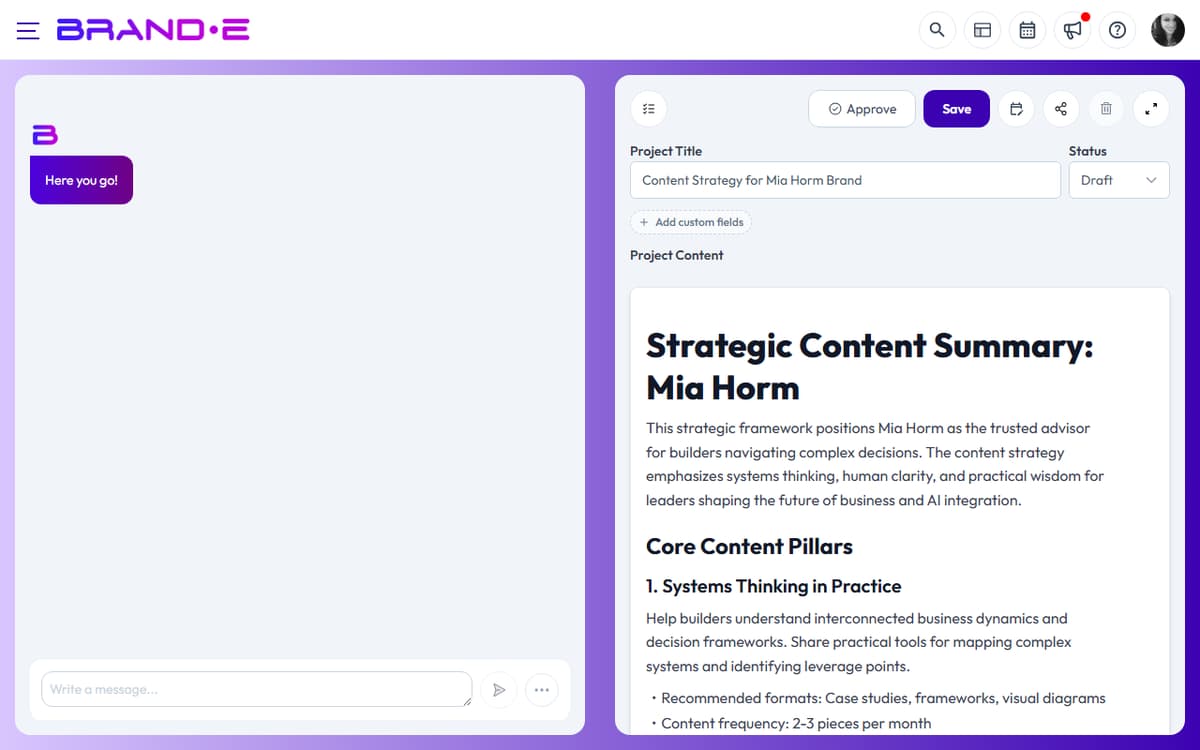
The Editor Interface
When you open a project, you see:
Left panel: Document Editor
- Block-based editor (EditorJS)
- Click any block to edit text directly
- Drag blocks to rearrange sections
- Delete unwanted sections
- Add new blocks (headings, text, images, tables)
Right panel: Chat Interface
- Conversation history with the AI
- Request modifications to any section
- Ask for new sections or complete rewrites
- Watch regeneration happen in real-time
Direct Text Editing
The fastest way to modify is direct editing:
- Click any text block in the document
- Edit the text directly — Rewrite headlines, adjust wording, add details
- Changes save automatically — No "save" button needed
Use direct editing for:
- Typo fixes
- Small wording adjustments
- Adding a specific name or detail
- Removing a sentence or paragraph
Chat-Based Refinement
For larger changes, request modification in chat:
Chat Request Examples:
"Make the headline more benefit-focused" → AI regenerates the headline to emphasize reader benefit instead of feature
"Add a customer quote in the second section" → AI inserts a realistic customer testimonial that supports your point
"Tone down the marketing language—make it more conversational" → AI rewrites the entire document to feel less corporate, more authentic
"Expand the CTA section with three specific next steps" → AI elaborates the call-to-action with concrete, actionable steps
"Shorten this to 500 words instead of 1000" → AI condenses while keeping the core message intact
"Add a section explaining the ROI of this approach" → AI inserts a new section with specific benefits and value proposition
"Rewrite the opening to address the objection: 'This sounds complicated'" → AI crafts an opening that directly addresses this concern and builds confidence
"Make this more vulnerable—include a mistake I made" → AI rewrites to include a personal learning moment or failure story
"Break this into 5 bullet points instead of paragraphs" → AI converts narrative into scannable bullet list format
"Add data or statistics to back up this claim" → AI incorporates relevant data points that support your main argument
How Regeneration Works
When you request a modification in chat:
- AI reads your request — Understands what you want changed
- AI references your Brand DNA — Ensures changes match your voice, audience, and objectives
- AI regenerates the section — Sends updated text back
- Updated section appears in editor — You see the revision immediately
- Old version is saved — You can revert if needed
Regeneration respects existing content:
- If you ask to "rewrite the first paragraph," the rest of the document stays the same
- If you ask to "add a new section after point 2," existing sections don't change
- If you ask for a full rewrite, the entire document gets regenerated while keeping the core structure
Revision History
Brande.ai saves up to 20 revision snapshots of your project. Access them to:
- Track what changed between versions
- Revert to an earlier version if a change didn't work
Revision history lives inline at the top of the editor. When the project has more than one revision, a ‹ / › chevron pair plus a Revision X of N label appears above the editor. Step through revisions with the chevrons; when viewing any non-current revision, a pencil icon labelled Make this the current version appears so you can promote it. There is no separate revisions sidebar or menu — everything is in this inline strip.
Typical revision snapshots:
- First generation (after clicking Done)
- First refinement (after your first chat request)
- Second refinement (after your second chat request) ...and so on, up to 20 total
Specific Refinement Scenarios
Scenario 1: Website Copy Needs Stronger CTA
Generated CTA: "Click below to learn more about our pricing."
Your request in chat: "Make the CTA more specific and urgent. I want to move them to a discovery call, not just learn more."
Result: "Ready to understand how we can transform your revenue operations? Schedule a 20-minute strategy call with our fractional CFO—no prep needed."
Scenario 2: LinkedIn Post Feels Too Corporate
Generated post: "We are pleased to announce our new partnership with [Client]. This strategic alliance positions us for continued market leadership..."
Your request in chat: "Tone down the corporate language. Make this conversational and authentic. This should feel like it's from a real person."
Result: "One of my favorite partnerships just went public. Here's what made this work: we found a team that values relationships over transactions. Excited to see what we build together."
Scenario 3: Blog Post Missing Personal Story
Generated intro: "Hiring for fit is important. Here are the top reasons why..."
Your request in chat: "Add a personal mistake story. I want to start with something vulnerable about how I learned this the hard way."
Result: "I hired the most experienced engineer on the market. Six months later, she left because the culture wasn't her fit. That mistake taught me something I wish I'd learned sooner: experience is just credentials; fit is everything."
Scenario 4: Content Too Long
Generated article: 1,800 words
Your request in chat: "This is too long for a blog post. Trim this to 800 words by focusing only on the three main points. Remove examples and sidebars."
Result: AI condenses to 800 words, keeps the three main points, removes supporting examples and tangents.
Scenario 5: Missing Specific Data
Generated claim: "This approach saves time."
Your request in chat: "I need to back this up with data. We found it saved our clients 15 hours per month. Can you add that?"
Result: "This approach saves time—specifically, our clients average 15 hours per month recovered. That's equivalent to a full-time contractor's capacity."
Best Practices for Effective Refinement
Best Practice 1: Be specific in your request Vague: "Make this better" Specific: "Make this more benefit-focused by starting with what the reader gains, not what we do"
Best Practice 2: Reference the section you want changed Instead of: "Rewrite the third point" Say: "Rewrite the section about ROI calculations"
Best Practice 3: Explain the "why" behind your request Instead of: "Make this shorter" Say: "Make this shorter because we're targeting busy founders who scan, not read"
Best Practice 4: Request one major change at a time Instead of: "Rewrite the entire document, change the tone, add a personal story, and make it shorter" Say: "Rewrite the opening with a personal story first" (then request other changes after)
Best Practice 5: Use revision history to test ideas Generate a version, request a risky change, see if you like it. If not, revert to a previous snapshot and try a different direction.
Best Practice 6: Lock in what's working If the first 3 sections are perfect, request changes only to sections 4–6. Don't regenerate the whole document.
Status Workflow During Refinement
As you refine, update your project status to track progress:
- Planning — Initial generation, exploratory phase
- Draft — Content is roughly right, in refinement phase
- Review — Content is ready for feedback from team or client
- Approved — Stakeholder signed off, ready to publish
- Published — Live on your channel
Use status changes to signal where your project is in the workflow.
Collaborative Refinement
If you're working with a team:
- Generate content in Brande.ai
- Set status to Review to signal it's ready for feedback
- Share project with your team or client
- Collect feedback via comments or email
- Implement feedback using chat refinement (one request per feedback item)
- Set status to Approved once stakeholder signs off
- Publish when ready
Each refinement saves a new revision snapshot, so your team can see the evolution of the content.
Tips for Efficient Refinement
Tip 1: Generate first, refine second Get the first version out quickly. Don't overthink variables before generation. The AI will refactor on request.
Tip 2: Trust your instinct If something feels off in the voice, tone, or message, request a change. Refinement is cheap; shipping misaligned content is expensive.
Tip 3: Use direct editing for tiny fixes Typos, word swaps, minor edits go faster with direct clicking and editing than chat requests.
Tip 4: Use chat for structural changes Rewriting sections, adding content, changing tone—these are chat requests. The AI handles larger transformations better in conversation.
Tip 5: Save your best refinement requests If you find a request that consistently improves content (e.g., "Make this more vulnerable and specific"), use it on every project.
Tip 6: One round of external feedback Avoid endless revisions. Get one round of feedback from your team or client, implement it, and move forward. Perfection is the enemy of shipping.
Troubleshooting Refinement
"The AI didn't make the change I requested" → Restate the request with more specific direction. Example: "In the second paragraph, change 'we help businesses' to 'we help founders who are...'
"It keeps reverting to corporate language" → The Brand DNA may be pulling corporate tone. Request: "Use the voice of [specific founder/person], not corporate marketing."
"I want to go back to an earlier version" → Open the project, use the ‹ chevron above the editor to step back to the revision you want, then click the Make this the current version pencil icon to promote it.
"Changes to one section are affecting another section" → Request each section change separately. Request full document rewrites only when you want comprehensive changes.