

Appearance
Understand Product Updates and Changelogs
Brande.ai ships improvements and new features continuously.
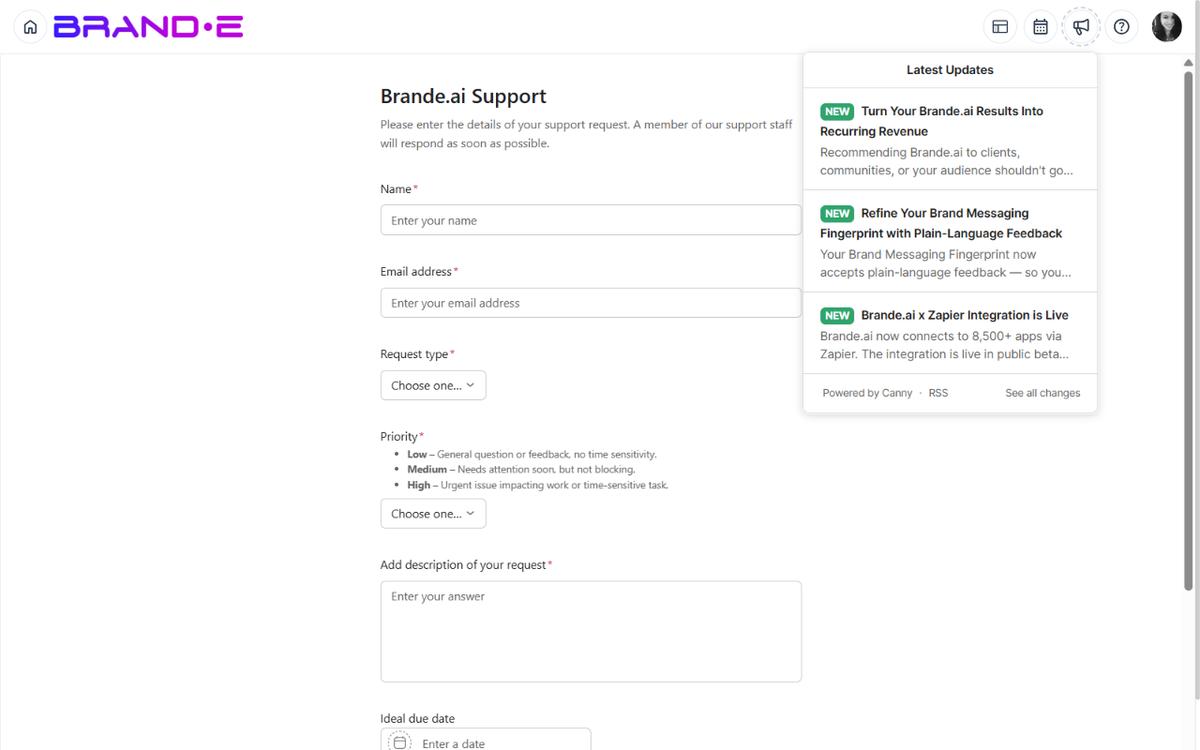
A changelog widget in the app shows exactly what's changed, what's coming next, and what bugs were fixed—keeping you informed without forcing you to check external websites.
Product Updates and Changelogs
Every time Brande.ai ships an update, it's documented in the changelog.
Updates include:
- New features (e.g., "Added dark mode toggle")
- Feature improvements (e.g., "Calendar now loads 50% faster")
- Bug fixes (e.g., "Fixed: Projects sometimes saved without content")
- Integrations (e.g., "New Zapier integration available")
- Performance optimizations
- Security patches
You see updates in:
- In-app changelog widget (header or dashboard)
- Email announcements (if you've opted in)
- Brande.ai blog and social media
Accessing the Changelog
Option A: Announcements Icon In the header (top of the page), look for a megaphone, bell, or announcements icon.
Click it to open the changelog widget showing recent updates.
Option B: Help Center Click your profile icon (top right) > Help Center > Look for a "What's New" or "Updates" section.
Option C: Header Announcements
The Announcements button in the top header is a Canny.io changelog widget anchored to the bell area. Click it to open the changelog popover. The dashboard itself does not include a changelog card.
What the Changelog Shows
The Canny changelog widget displays:
Recent Updates (Most Recent First)
- Update title (e.g., "Project Templates Are Now Live")
- Brief description of what changed
- Date of update
- Category tag (New Feature, Improvement, Bug Fix, etc.)
Upcoming Features (Coming Soon)
- Feature name (e.g., "API Rate Limit Increases")
- Expected availability ("Coming next month")
- Community upvote count (how many users want this)
Version History
The Canny changelog widget itself is the version history — scroll back through the popover to see every published update. There is no separate "version history" page in Brande.ai.
Understanding Update Categories
Updates are tagged with categories to help you scan quickly:
New Feature A brand new capability that didn't exist before.
- Example: "Add ability to export projects as PDF"
- Look for this if you're exploring what's possible
Improvement An existing feature works better now.
- Example: "Calendar now loads 50% faster"
- Impact: Same feature, better experience
Bug Fix Something that was broken is now fixed.
- Example: "Fixed: Notifications not delivering for approvals"
- Impact: Known issue is resolved
Deprecation An old feature is going away or changing.
- Example: "Legacy API endpoints deprecated—migrate to v2"
- Impact: You may need to update your workflow
Security Update A security issue was fixed.
- Example: "Patched: Potential XSS vulnerability in project comments"
- Impact: Your data is more secure
Performance Speed or reliability improvement.
- Example: "Reduced database queries by 40% for dashboard loading"
- Impact: App feels snappier
Staying Informed About Updates
In-App Notifications
The Canny widget anchored to the Announcements button in the header surfaces new updates with a small unread badge. Click the bell to see what's new.
Email Updates
There is no in-app subscription for product-update emails today. Watch the Announcements widget regularly, or subscribe to the Brande.ai newsletter / blog if one is available outside the app.
Check Changelog Weekly Make it a habit: Every Monday, click the Announcements icon and scan what's new. Takes 2 minutes.
Watch for Features You Requested If you submitted feedback, watch the changelog for your feature shipping. When it does, the entry usually credits user feedback.
Impact of Updates on Your Workflow
New Features
- Usually optional (you don't have to use them)
- Available immediately after release
- May have a slight learning curve
- Often documented in help articles
Improvements
- Usually transparent (your workflow stays the same)
- May make existing features faster or easier
- No action needed from you
Bug Fixes
- Usually fix problems you may not have noticed
- Sometimes fix critical issues (you'll see them in changelogs)
- No action needed from you
Deprecations
- Old features are going away
- You'll have warning (usually 30+ days)
- You need to migrate to new approach before the old feature disappears
- Detailed migration guides are provided
Security Updates
- Applied automatically
- May require a password reset for affected users (you'll be prompted on next login if so)
- Increases your data safety
When Updates Don't Affect You
Most updates don't impact your work:
- A performance improvement makes something faster, but you don't change how you use it
- A bug fix solves a problem you never encountered
- A new feature is optional—you can ignore it if you don't need it
You only need to act if:
- A feature you use is being deprecated
- A new feature replaces your workaround
- A critical bug fix affects your workflow
Changelog Best Practices
Scan the Changelog Weekly Spend 2 minutes on Monday morning reading recent updates. You'll never be surprised by changes.
Read Deprecation Notices Immediately If something you use is being deprecated, read the migration guide right away so you're not caught off-guard.
Try New Features When a new feature you might use ships, try it. Give feedback on whether it works for you.
Watch the Upcoming Section See what's coming next. If something excites you, upvote it on the feedback board to show demand.
Share Relevant Updates with Your Team If you use Brande.ai with a team, share major updates with them: "New feature shipped: bulk project actions, will save us time"
Common Update Scenarios
Scenario 1: "I see a new feature on the dashboard" → Read the changelog to understand it → Try it out (it's safe, it's backwards compatible) → If you like it, use it; if not, ignore it
Scenario 2: "Something I use is deprecated" → Read the migration guide → Make the switch before the deadline → Ask support if you get stuck
Scenario 3: "The app feels faster" → Check the changelog for performance improvements → Enjoy the speed boost, no action needed
Scenario 4: "A feature I requested is now live" → See it in the changelog with "New Feature" tag → Try it immediately → Share it with your network