

Appearance
Preview Files and Images Inside Brande.ai
View images and files directly in the editor without downloading. Brande.ai displays images inline as you work, so you see your full content layout in real-time.
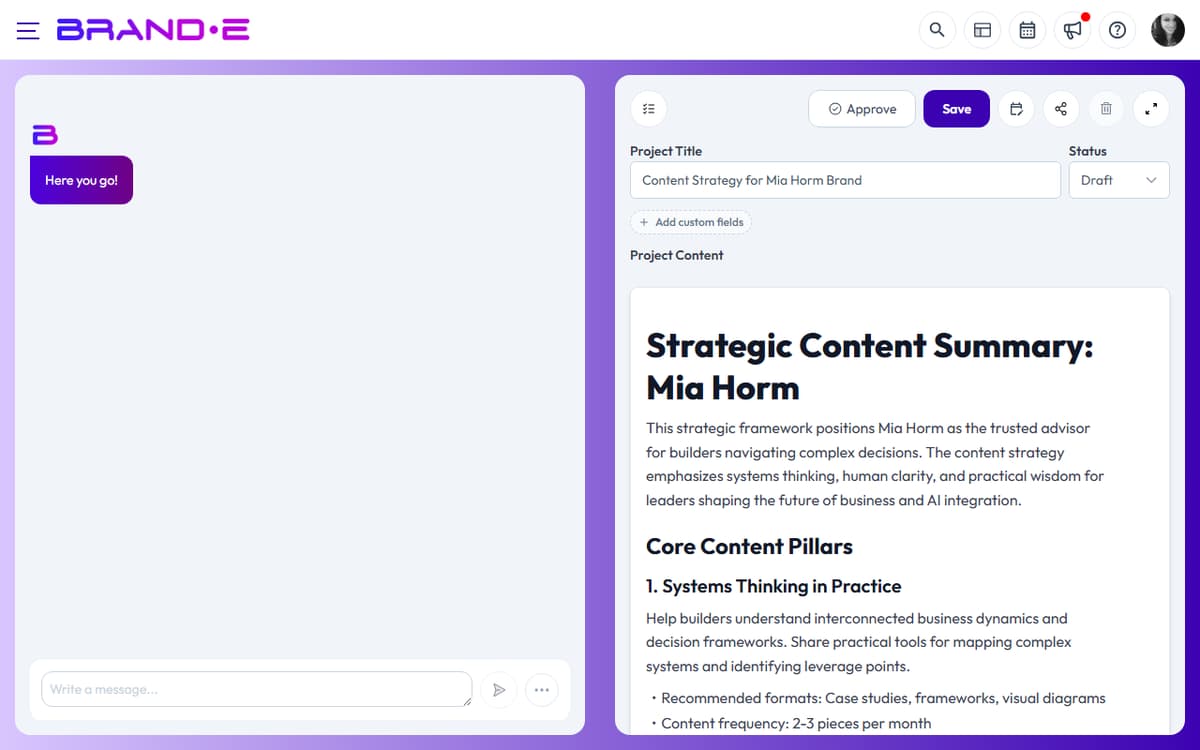
View images in the editor
When your project contains images:
- Images display inline in the editor as content blocks
- See exactly how text and images flow together
- Preview your content as it will appear when published
- No download needed
Click any image to view it full-size or edit its properties.
Image controls
Once an image is inline:
- Move: Drag images up or down within your content
- Delete: Select the image and press delete or use the block menu
- Caption: Captions on generated image blocks are hidden by design — add image context in the surrounding paragraph
- Alignment: The editor renders images at default block width; there is no left/center/right alignment control
File attachments
Reference materials (PDFs, Word docs, spreadsheets, audio, video) are uploaded under your brand and referenced from the variable dialog when starting a project. They are not embedded as inline blocks inside the document editor; instead they feed the AI as context. To preview a reference material, open it from the Reference Materials page in the Account sidebar.
Export images separately
To get generated images:
- Open your project
- Right-click any image in the editor to save it to your computer
- Or export the entire project as DOCX (images included)
Preview full project layout
To see how your project looks when exported or published:
- Use the Export button (PDF or Word) for a complete preview
- Open the exported file to see final layout with all images
- This shows how content will appear to readers