

Appearance
Manage Client Review and Approval
Client approvals are core to agency workflow. Instead of email ping-pong, manage the entire review cycle inside Brande.ai. Clients see what matters and approve when ready—without access to your backend or brand settings.
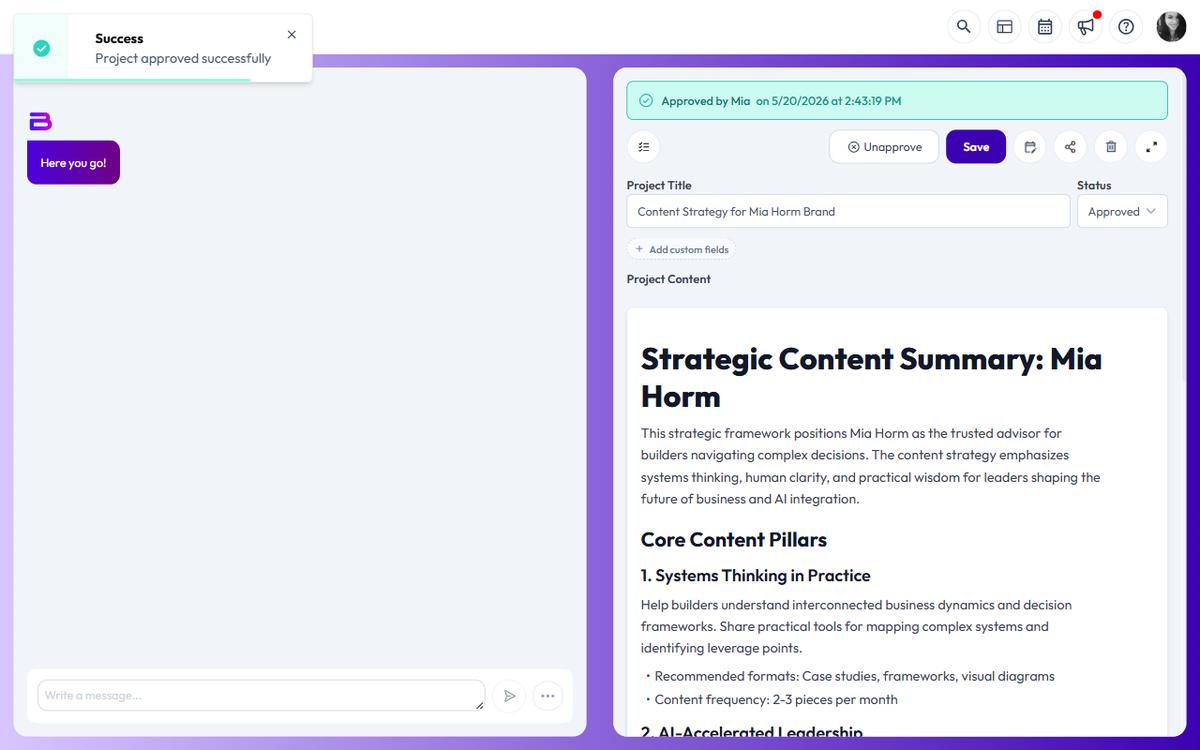
How client approval works
Your client or stakeholder is a collaborator with a special role:
Client collaborators:
- See only the projects shared with them
- Cannot access brand settings or dashboards
- Cannot view Content Agent recommendations
- Cannot access the Content Calendar (scheduling/planning hidden)
- Can view, comment on, and approve/unapprove projects
- Have read-only access to created content
This keeps your internal process private while giving clients visibility into their projects.
Invite a client to review
- Click Share on your project
- In "Share Content with Collaborator" section, copy the shareable link
- Send the link to your client via email
The client opens the link and can:
- Read the full project content
- Leave comments with feedback
- See images and generated assets
- View your approval status
Note: Clients cannot edit the project content directly. You make changes based on their feedback.
Add a client as a team member
For ongoing client access (multiple projects):
- Open the Invite dialog from the Account area
- Enter the client's email and select the brand
- In the Select Role dropdown, choose Client Collaborator
- They get access to all projects you share
- They use one account across all your projects
This is better than per-project links for long-term partnerships.
Manage review feedback
When a client comments:
- You get a notification in Brande.ai
- Open the project to see their comments in the Comments sidebar
- Reply to their feedback directly
- Mark comment as resolved when addressed
Comments stay in context—no email chain needed.
Approval workflow
Once your project is ready:
- Set project status to Review (signals it's awaiting feedback)
- Share the project with your client
- Client reviews and leaves comments
- You make requested changes
- Change status back to Review when updated
- Client reviews again and approves
When the client is satisfied:
- Click Approve button (only if your plan includes project_approval feature)
- Approval confirmation appears: "Approved by [Client Name] on [Date]"
- Status automatically changes to Approved
- Green approval banner displays at top of project
What approval means
An approved project:
- Has client sign-off (audit trail recorded)
- Cannot be accidentally changed without re-review
- Shows approval metadata (who approved, when)
- Can proceed to publishing
Re-approval: If you make changes after approval, the project reverts to Draft status. You'll need client re-approval before publishing.
Unapproving a project
If you need to revise an approved project:
- Click Unapprove button
- Project status changes to Draft
- Client sees the change
- You're free to edit without approval status
Share updates with client and request re-approval.
What clients cannot see
Client collaborators have limited visibility:
- Cannot access brand settings or Brand DNA
- Cannot see Content Agent recommendations (those recommendations hide automatically)
- Cannot view Content Calendar or scheduling features
- Cannot access dashboard analytics or insights
- Cannot create new projects (if read-only role)
- Cannot manage integrations or publishing
This keeps agency operations confidential.
Client approval feature requirements
Project approval requires your plan to include the project_approval feature. If you don't see Approve/Unapprove buttons:
- Your current plan doesn't include project approvals
- Upgrade to a higher tier to unlock this feature
- Contact support for details
Multiple client approvers
If multiple stakeholders need to weigh in:
- Invite all clients to the brand as Client Collaborators
- Each can comment and see the project's approval status
- First approval is sufficient — the project moves to Approved as soon as one approver clicks Approve, and the approval banner shows that approver's name and timestamp. There is no quorum or multi-approver requirement.
- To require revisions after approval, click Unapprove to clear the approval and return the project to draft.
Approval workflow best practices
For agencies:
- Create project in Draft status
- Move to Review when ready for client
- Share and wait for client feedback
- Update project based on comments
- Share updates and request approval
- Once approved, proceed to publishing
- Mark Published when live
- Archive when campaign ends
For in-house teams:
- Draft content (status: Draft)
- Send to stakeholder for review (status: Review)
- Marketing lead approves (status: Approved)
- Publish when ready (status: Published)
Prevent approval bottlenecks:
- Set clear approval SLAs (e.g., 24-hour turnaround)
- Use notifications to prompt approvers
- Escalate if approval delayed beyond deadline
Client access limits
Collaborator limits may apply to client users:
- Your plan allows a maximum number of collaborators
- Client users count toward this limit
- "You have reached collaborator limit, upgrade your plan" appears when limit hit
- Upgrade to add more client access or internal team members