

Appearance
Find Projects Using Sidebar Search
Need to find a specific project fast? Use Project Search to locate any project by name across your entire brand—no matter how many folders you have or where it lives.
Open Project Search
Click the View Projects button in the sidebar (magnifying glass icon). Keyboard shortcut: Modifier+Shift+P (Cmd+Shift+P on Mac, Ctrl+Shift+P on Windows/Linux).
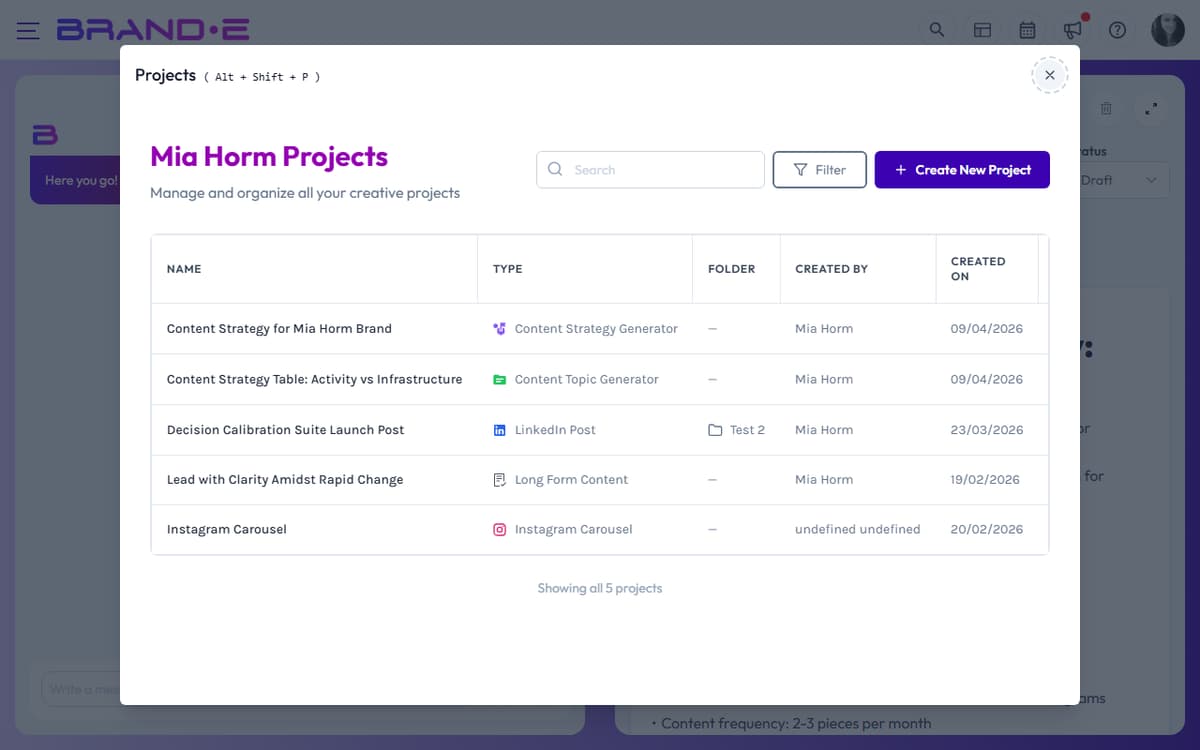
The Projects page opens with a full searchable list of all projects.
Search by project name
Type in the search field to find projects:
- Search is instant as you type
- Matches project name and type
- Results update in real-time
- Shows all matching projects across all folders
Examples:
- Search "Q2" to find all Q2 campaign projects
- Search "blog" to find blog-related content
- Search "client name" to find work for that client
Filter and sort
Beyond text search, you can filter projects by:
- Status: Planning, Brief, Draft, Review, Approved, Published, Archived
- Folder: Which folder contains the project
- Template: The content type (blog post, email, social post, etc.)
- Creator: Who created the project
- Date: When the project was created
- Custom fields: Any custom metadata you've added to projects
Click the Filter button above the project list to open filtering options. Active filters show a count badge.
Reset filters
Click the number badge on the Filter button to clear all active filters. Or deselect individual filters one by one.
View all projects
The Projects page shows:
- Project name and type (template)
- Folder it belongs to
- Creator name
- Creation date
- Current status with color indicator
- Any custom fields you've defined
Click any project row to open it and start editing.
Navigate back to sidebar
After searching and finding a project:
- Click the project row to open it
- The editor closes the search view
- The sidebar collapses back to your folder/project overview
- Your project is now active and ready to edit
Close the project search modal by:
- Clicking X in the modal
- Pressing Escape
- Selecting a project to open
Search limitations
- Searches within your current brand only
- Archived projects are excluded from default view (filter to include)
- Project search finds by name and type, not by content inside the project
For more powerful filtering, use the Projects page filters instead of just text search.