

Appearance
Manage User Preferences
User preferences in Brande.ai are intentionally minimal today. Almost all of what other tools call "user preferences" lives on three pages you've already read about:
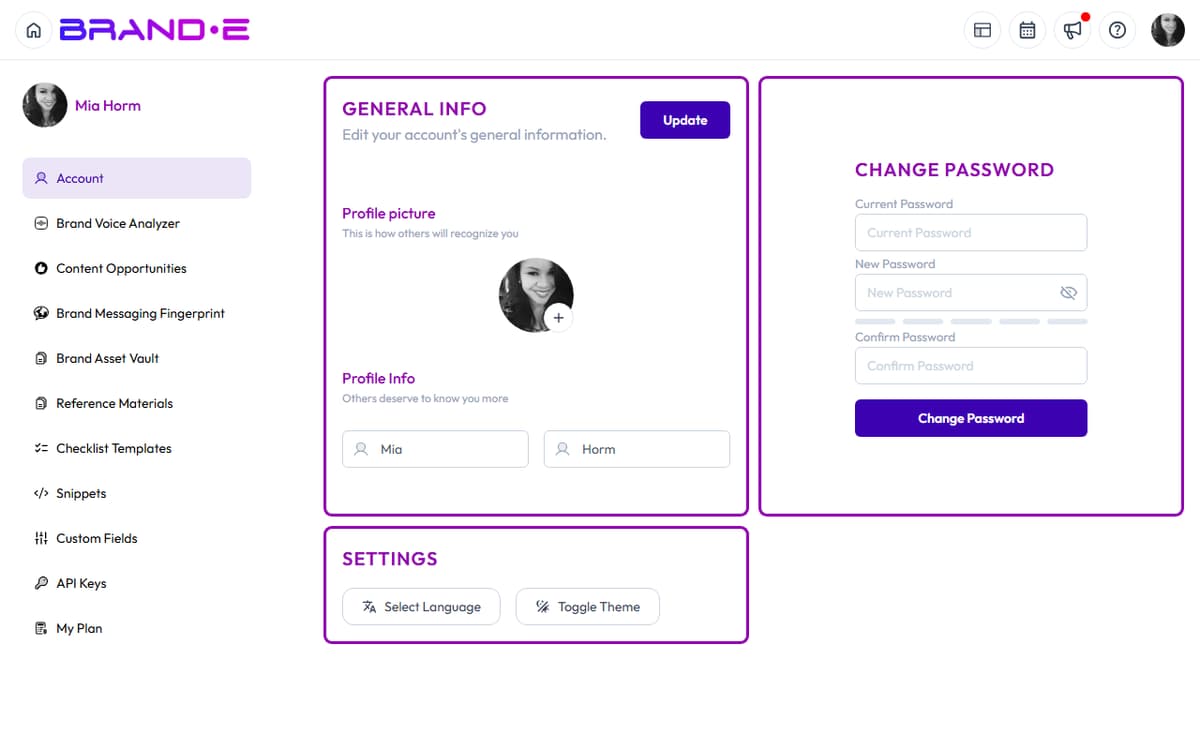
- Account (
/account) — your name, profile picture, password, and the Settings card with Language and Toggle Theme. See Access and Update Account Settings. - Update Theme and Language Preferences — the same two controls, in detail. See Update Theme and Language.
- Notifications (
/notifications) — invite responses and recent activity. See Manage Notifications.
This article covers what's actually configurable today and where each setting lives. If a preference you expect isn't listed here, it doesn't exist yet — see Submit Product Feedback to request it.
What you can configure today
Profile (Account page)
- Profile picture
- First name and last name
- Password (via the embedded Change Password card)
Workspace settings (Account page → Settings card)
- Language — opens the language side panel; selection is stored on your Directus user record (account-wide)
- Toggle Theme — light or dark; stored as
colorMode.preferencein client storage (account-wide)
Notifications
- Inbox of invites and activity at
/notifications - No granular email-frequency, push, or per-type toggles today — see Manage Notifications
What is NOT a preference today
These commonly-expected settings do not exist in Brande.ai yet:
- Default timezone (calendar uses your browser's local timezone implicitly)
- Email digest frequency (no digest email today)
- Dashboard widget layout (the dashboard is fixed)
- Default project template (you choose a template each time you create a project)
- Default content channel (set per project in the variable dialog)
- Do Not Disturb hours
- Per-brand notification preferences
Access User Preferences
There is no separate Preferences route. All user-scoped settings live on /account (the profile page):
- Press Ctrl/Alt+A or click your avatar and choose Account
- The Account page shows your profile info, password, and a Settings card with Language and Toggle Theme
Updating Preferences
For profile fields (name, picture):
- Edit the field on the Account page
- Click Update
- A success toast confirms the change
For language and theme:
- Click Language or Toggle Theme on the Account page's Settings card
- Selection is saved immediately
Brand-specific vs account-wide
The settings on this page are account-wide — they apply across every brand you have access to.
Brand-specific settings live on the brand itself (Brand Profile, Brand Voice, Brand Asset Vault, Reference Materials, Custom Fields, Snippets, Checklist Templates, API Keys). Switching brands changes those, not your account preferences.
Troubleshooting
Q: I can't find a specific preference setting. A: It probably doesn't exist yet. The current preference surface is intentionally small — profile, password, language, theme. Submit a feature request via the help dialog's Share Product Feedback card if you'd like to see more.
Q: I changed a preference but it's not taking effect. A: Refresh your browser. Language changes in particular take effect after a page reload.
Q: Can I reset all preferences to default? A: There is no built-in "reset to defaults" action. Switch language or theme back manually.
Q: Do my team members see my preferences? A: No. Profile, language, and theme are user-scoped. Your team members have their own.
Q: Which preferences apply only to my brand vs. all my brands? A: Everything on this page is account-wide. Brand-specific data (voice, references, custom fields, etc.) lives on the brand itself.