

Appearance
Export Tables to CSV
Extract data from comparison tables and other structured content. Export any table in your project to CSV format for use in spreadsheets, analysis tools, or further processing.
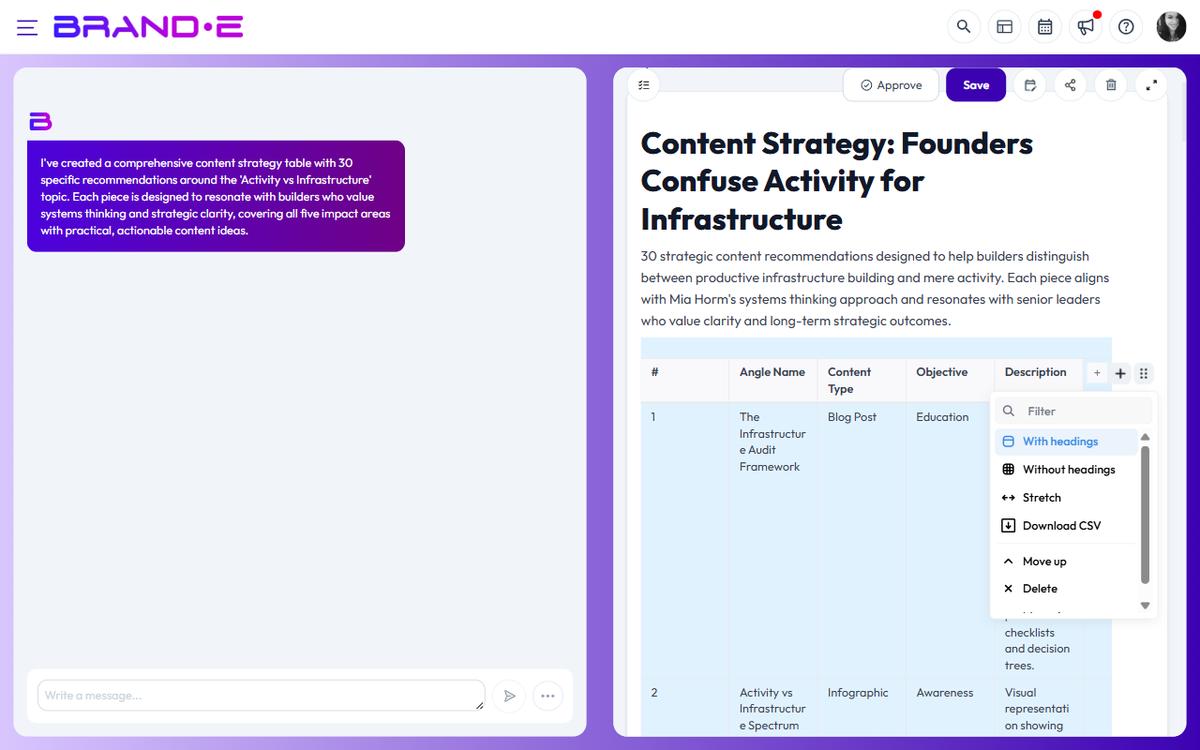
Export a table to CSV
When your project contains a table:
- Click the Download CSV button on the table
- A CSV file downloads automatically to your computer
- Toast notification confirms: "Table exported to CSV"
The file saves as table.csv (or similar) to your Downloads folder.
Open CSV files
Once downloaded, you can:
- Open in Excel, Google Sheets, or LibreOffice Calc
- Import into data tools and dashboards
- Edit, sort, and analyze the data
- Embed in other documents
- Share with team members for collaborative work
CSV format details
The exported CSV contains:
- Column headers (from your table)
- All rows of data
- Plain text formatting (bold, italics, links are converted to plain text)
- UTF-8 encoding for international characters
Example table in editor:
Feature | Free Plan | Pro Plan
------|---------|----------
Projects | 10 | Unlimited
Team Members | 2 | 10
Exports as CSV:
Feature,Free Plan,Pro Plan
Projects,10,Unlimited
Team Members,2,10
When to export tables
Export tables when you need to:
- Share data with colleagues for review or editing
- Perform calculations or analysis in a spreadsheet
- Create charts or visualizations from table data
- Import data into external tools (CRM, analytics, etc.)
- Build reports combining data from multiple sources
Don't need to export for:
- Sharing the full project (use PDF or Word export instead)
- Client review (include the table in your exported document)
- Internal team comments (use Comments in the editor)
Limitations
- Tables export as plain data (no styling, colors, or formatting)
- Very large tables work fine but may take a moment to download
- External links in tables are preserved as URLs
- Images in table cells are not included in CSV — the CSV export only reads the table block's cell text, and image blocks live outside the table's content array
Edit and reimport
If you edit the CSV in a spreadsheet:
- Save the updated CSV
- Copy the data from your spreadsheet
- Paste into a new table in your project editor
- Or create a new project with the updated data
There's no automatic reimport—manually update your project with the new data.