

Appearance
Share Content Projects
Give collaborators access to your projects without giving them access to your brand settings. Share via link or social media to distribute your work.
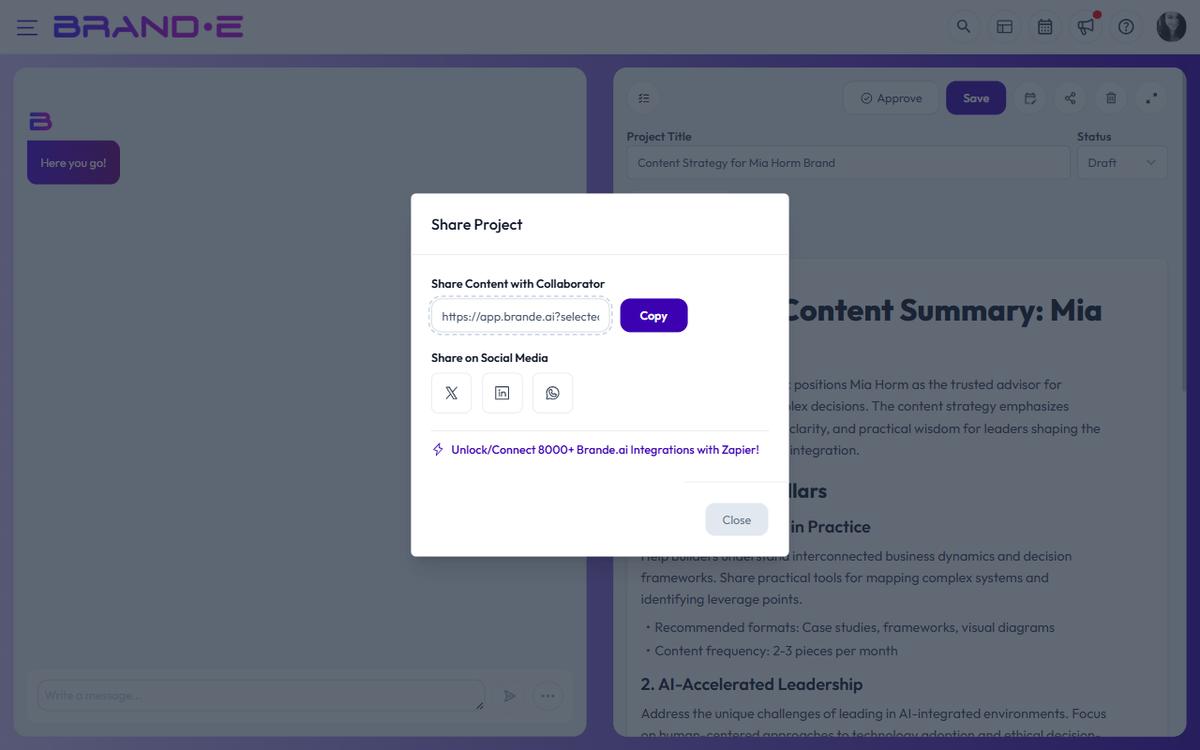
Open the share modal
Click the Share button (network icon) in the project editor toolbar. A modal appears with two sharing sections.
Share with collaborators (link sharing)
Share Content with Collaborator section:
- A URL appears in the text field—this is your shareable project link
- Click Copy to copy to clipboard
- Send the link to:
- Team members via email or Slack
- Clients for review
- Stakeholders in your org
- Anyone who needs to see the project
Recipients click the link and see your project in read-only mode. They can view content, images, and tables but cannot edit.
Copy or Copied button
- Copy: Click to copy the link to your clipboard (one click, no dialog)
- Copied: Appears briefly after clicking to confirm successful copy
The button text changes back to "Copy" after 2 seconds.
Share on social media
Share on Social Media section:
Choose where to share your project content:
X (Twitter):
- Click the X button
- A new window opens to Twitter/X
- Your project text is pre-filled in the compose box
- You can edit, add hashtags, or adjust before posting
- Click "Post" to send
LinkedIn:
- Click the LinkedIn button
- A new window opens to LinkedIn
- Your project content appears in the share compose
- Edit or add context for your network
- Click "Share" to post
WhatsApp:
- Click the WhatsApp button
- Opens WhatsApp with your content ready to share
- Select recipients and send
What gets shared
The text content of your project is extracted and passed to the platform's native share intent. Images are not attached automatically — if you need images on the social post, save the generated images from the editor first, then attach them in the platform's compose window.
Collaborator limits and upgrades
When sharing projects, there's a collaborator limit based on your plan:
- Each person you share with counts toward your limit
- When you reach the limit: "You have reached collaborator limit, upgrade your plan"
- Only new collaborators hit the limit; existing ones retain access
- Upgrade your subscription to share with more people
Example:
- Creator plan: 1 collaborator
- Growth plan: up to 10 collaborators
- Agency plan: up to 100 collaborators
To add more collaborators, click to upgrade from the message.
Who can see what
When you share a project:
Collaborators with the link can:
- View the project content, images, and structure
- Leave comments (if project_comments feature is enabled)
- See approval status
Collaborators cannot:
- Edit the project (read-only access)
- Access your brand dashboard or settings
- See other projects (only the ones you share)
- Publish on your behalf
- Manage integrations
Differences from inviting team members
Sharing a link: Anyone with the link can view. Good for one-off sharing.
Inviting to brand: Creates a team member with ongoing access. Good for regular collaborators.
For ongoing collaboration, consider inviting them as a brand team member instead of sharing individual links.
Share security
Shareable links:
- Are tied to a specific project ID and only work for users with brand access
- Don't appear in public search results
- Don't expire and don't have an explicit revocation button — to cut off access, remove the recipient from the brand or change their role
Note: Don't share project links in public forums or where untrusted users might see them.