

Appearance
Understand Projects and Folders
Projects are your individual content pieces. Folders organize projects into meaningful groups. Together, they give you structure at any scale—from a single post to a multi-channel campaign.
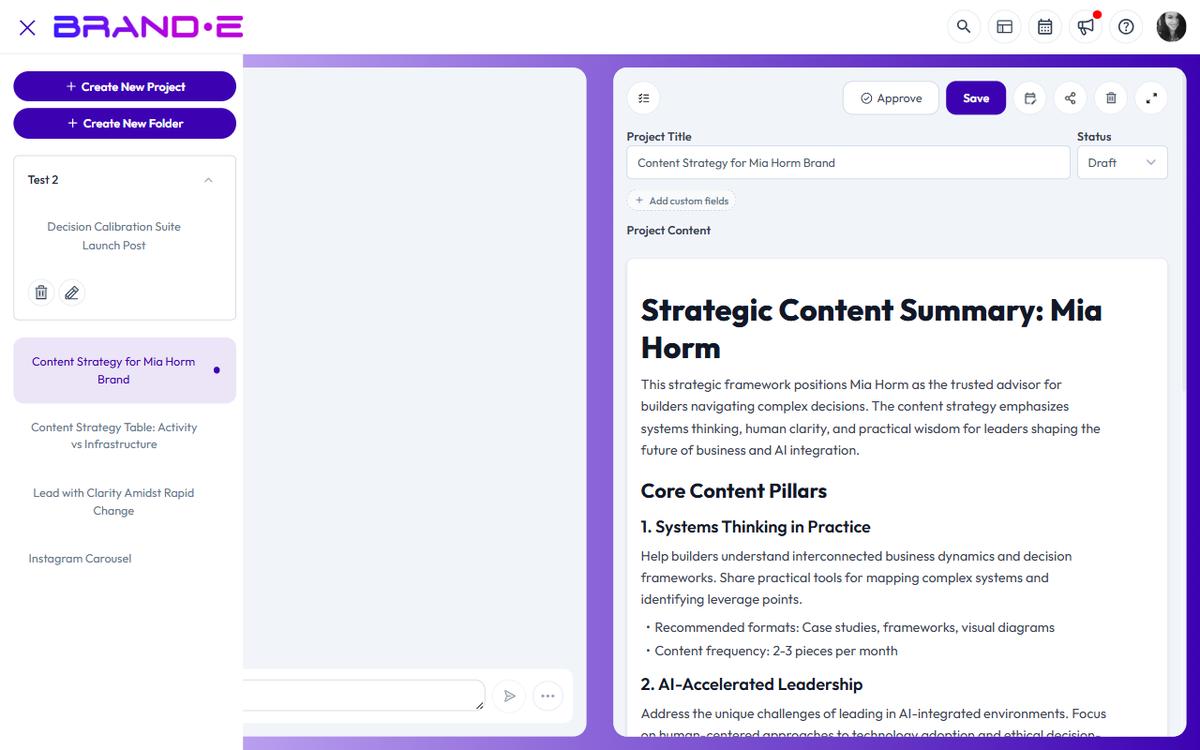
What is a project?
A project is one piece of content: a blog post, social media caption, email, webpage copy, or any standalone asset. Each project:
- Has its own name, status, and content
- Can be edited, approved, shared, or published independently
- Belongs to one folder (or no folder)
- Tracks creation date, creator, and approval status
- Can be exported as PDF or Word
Projects are the unit of work in Brande.ai. Everything else organizes them.
What is a folder?
A folder is a container for related projects. Folders help you:
- Group projects by campaign, month, or theme
- Find content faster when you have dozens of projects
- Organize work by team or stakeholder
- Structure your workflow visually
A project can belong to one folder or no folder. You can move projects between folders anytime (drag and drop).
Working with folders
Create a folder: Click "New Folder" in the Projects sidebar. Give it a name like "Q2 Campaign" or "Blog Series."
View folder contents: Click the folder name to expand it and see all projects inside. Collapse to hide them.
Rename or delete: Right-click a folder to rename or remove it. Moving a project out or deleting a folder doesn't delete the projects—they stay in your project list.
Drag projects into folders: Select a project and drag it into a folder. It moves instantly. Drag it out to remove it from that folder.
Project statuses
Every project has a status that reflects its stage:
- Planning: Initial ideation, not ready for review
- Brief: Brief document created, awaiting content creation
- Draft: Content written, still in development
- Review: Ready for feedback or client approval
- Approved: Approved by brand owner or client
- Published: Live on your platform or channel
- Archived: No longer active, kept for reference
Use status to track workflow and find projects at a glance.
When to use folders
Create a folder for:
- A specific marketing campaign (e.g., "Black Friday 2026")
- A content calendar month (e.g., "March 2026 Posts")
- A series of related posts (e.g., "Product Launch Emails")
- Work for a specific client (if you're an agency)
- Content by team member (e.g., "Sarah's Blog Drafts")
Don't create a folder for:
- Every single project (too granular)
- Temporary groupings (use project status instead)
- Archived content (mark projects "Archived" instead)
Project limits and sidebar display
The Projects sidebar shows up to 10 projects at the root level (not in folders). If you have more:
- Click "View more" to see all projects in the Projects page
- Use folders to keep root level clean
- Use Project Search (Modifier+Shift+P) to find projects across all folders
Campaigns
Multi-channel campaigns have their own dedicated feature: Campaign Studio. It plans a campaign's strategy — research, positioning, channel plan, and launch timeline — before you generate any content, then lets you generate each planned asset straight into a project. See Understanding Campaign Studio.
Folders are still the right tool for lighter-weight grouping that doesn't need a full campaign plan — for example, gathering a handful of related posts under one label (like "Q3 Product Launch") without running a research sprint first.