

Appearance
Generate On-Brand Images
Your Brand DNA controls the visual identity of every image Brande.ai creates. When you generate images, the AI inherits your brand's color palette, visual style, and composition preferences—ensuring consistency without manual tweaking.
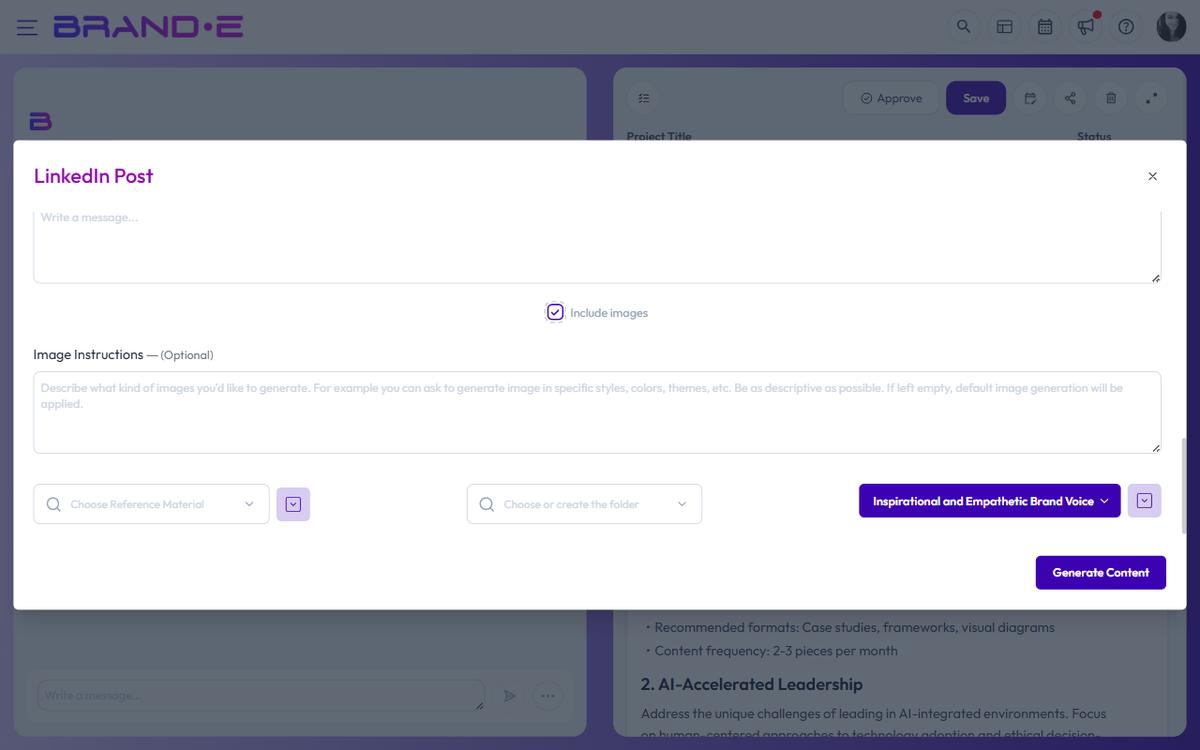
How image generation uses Brand DNA
When you create content with Brande.ai, your Brand DNA is the foundation for all visual assets. The system automatically applies your brand's established visual language to generated images, so every asset feels like it belongs to your brand. This means:
- Colors and visual style are locked in from your brand profile
- Generated images match existing brand materials
- No post-production color correction needed
- Consistency across all projects
Enable image generation for a project
When you create or customize a project, the variable dialog (the modal that collects template inputs) shows an Include images checkbox and, when ticked, an Image Instructions textarea. When enabled:
- Brande.ai generates images alongside your written content
- The image model is chosen for you behind the scenes (Brande.ai uses Flux Schnell by default and may swap in Recraft V3, Ideogram v3 Turbo, or Seedream 3 depending on the template)
- Each image inherits your Brand DNA automatically
- Images appear inline in the editor as image blocks as content is generated
When to use image generation
Use "Include images" when:
- You need visual content for social media posts (Instagram, LinkedIn, Twitter/X)
- You're creating blog posts or web content that require hero images
- You want cohesive branded materials without hiring a designer
- You're working on a campaign that needs multiple themed visuals
Skip image generation if:
- You have existing photography or custom graphics to use
- Your brand relies on specific real-world imagery (e.g., product photography)
- Platform limits don't support images (check content calendar settings)
Customize image style using plain English
You can describe your desired visual style in natural language. The Image Instructions textarea appears under Include images in the variable dialog. The placeholder reads: "Describe what kind of images you'd like to generate. For example you can ask to generate image in specific styles, colors, themes, etc. Be as descriptive as possible. If left empty, default image generation will be applied."
Write descriptions like:
- "Minimalist flat design with pastel colors and geometric shapes"
- "Bold photography with strong shadows and dramatic lighting"
- "Watercolor illustrations with organic, flowing elements"
- "Corporate photography with professional models in office settings"
Brande.ai reads these instructions and applies them to all generated images alongside your Brand DNA. More specific instructions produce better results.
Preview and use generated images
- Images display inline in the editor as image blocks
- Drag an image to reorder or replace it inside the document
- Captions on generated images are hidden by design — keep image context in the surrounding paragraph
- There is no inline lightbox, crop tool, or one-click regenerate; to swap an image, delete the block and regenerate or upload a replacement
Image sizing
Brande.ai uses fixed model defaults for image dimensions — there is no per-generation size selector in the variable dialog. The only user-facing levers are the Include images checkbox and the Image Instructions textarea. If you need a specific aspect ratio or pixel size, mention it directly in your image instructions (for example, "square 1:1 composition" or "vertical mobile-friendly").
When images don't match your vision
If a generated image doesn't fit your brand:
- Update your Brand DNA with more specific color or style guidance
- Revise the Image Instructions textarea to be more detailed
- Use custom content or external images instead
- Contact support if images consistently miss brand guidelines