

Appearance
Create and Manage Snippets
You repeat the same messaging across projects. "Our 3-step framework." Your value proposition. Your credentials or credibility statement. Instead of rewriting them every time, save them as snippets—reusable text blocks you insert with a keyboard shortcut.
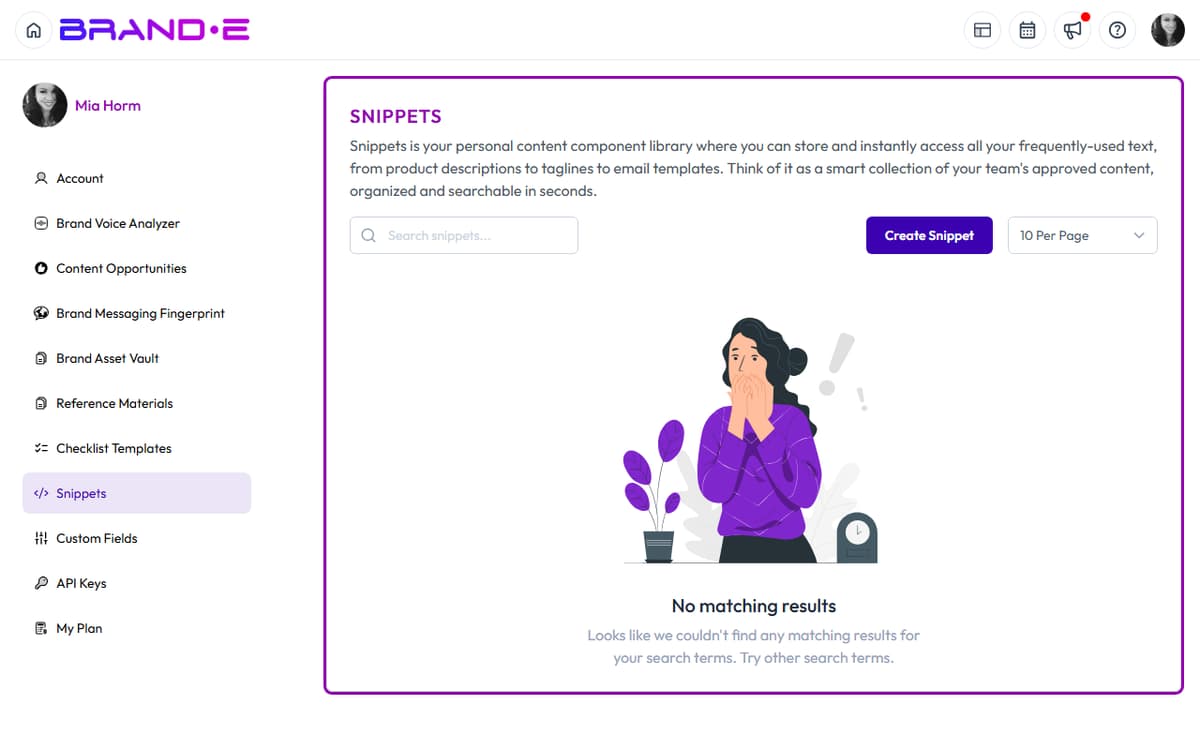
Snippets are your message library. Create them once, use them everywhere, and keep messaging consistent across all projects.
What Are Snippets?
Snippets are short, reusable text blocks with three components:
Description — What the snippet contains (for searching) Example: "3-step framework summary"
Shortcut — A keyboard command to insert the snippet Example: 3step or framework
Snippet Text — The actual content to insert Example: "Our proven 3-step framework: (1) Audit your current approach, (2) Design your custom strategy, (3) Execute and measure."
When you're in a project, press the snippet shortcut (Ctrl+C on macOS or Alt+C on Windows/Linux), then pick or type your snippet name to insert the full text.
When to Use Snippets
Use snippets for:
- Repeated value propositions
- Methodology or framework descriptions
- Signature credibility statements (credentials, company stage, social proof)
- Standard CTAs or sign-off language
- Frequently used brand examples or case studies
- Standard disclaimers or legal language
- URLs or email addresses
- Formatting templates or outlines
Don't use snippets for:
- One-time content (defeats the purpose)
- Long blocks (over 500 words—too much to reuse identically)
- Highly personalized content (names, specific client details)
- Content that changes frequently
Access Snippets
Snippets are managed in your Account area.
To access Snippets:
- Click your user avatar (top right)
- Click Account or navigate to
/account/ - In the sidebar, click Snippets
- The Snippets list page opens at
/account/snippets/list
Create a New Snippet
Step 1: Navigate to Snippets
Account sidebar → Snippets → click Create Snippet.
Or open a snippet directly at /account/snippets/[id].
Step 2: Fill the Snippet Form
Three required fields:
Shortcut (required) The trigger you'll type after Ctrl/Alt+C to insert this snippet.
- Keep it short (2–6 characters) so it's quick to type
- Use alphanumeric characters; hyphens and underscores work too
- Example:
3step,vpvalue,cta-main - Brande.ai does not enforce a length, character pattern, or duplicate check on shortcuts — to avoid collisions, scan your existing shortcuts on the Snippets list before creating a new one
Description (required) A human-readable name for searching.
- Example: "3-step framework," "Value proposition," "Main CTA"
- This is the column you'll search by on the Snippets list
- Keep it concise so it reads well in the list
Snippet (required) The actual content to insert.
- Paste or type the text you want to reuse
- Line breaks and special characters are preserved on insert
Step 3: Save the Snippet
Click Save Snippet.
A toast confirms "Snippet created successfully!". The snippet is saved to your brand and is immediately available in any project.
Use a Snippet in Your Project
Method 1: Keyboard Shortcut
While editing in a project:
- Click where you want to insert the snippet
- Press
Ctrl+C(macOS) orAlt+C(Windows/Linux) to open the snippet picker - Find your snippet by shortcut or description
- Click the snippet to insert it at your cursor
The full snippet text appears at your cursor.
Method 2: Snippet Picker (button)
If keyboard shortcuts feel awkward, the picker is also reachable from the UI:
- In the new-project chat: open the action menu in the chat composer and click the Snippets item.
- In the document editor: open the inline-tool toolbar on a block and select the snippet tool.
A modal opens listing your snippets. Click any snippet card to insert it at your cursor.
Search Snippets
On the Snippets list page:
Search bar placeholder reads "Search snippets...".
- Type a keyword from the description, shortcut, or snippet text
- Results filter as you type
Browse all snippets
- Without a search term, snippets appear in a paginated table with Shortcut, Description, and Snippet columns
- Click any row to open the snippet for editing
Edit a Snippet
On the Snippets list page:
- Find your snippet (search or browse)
- Click the snippet row to open edit view
- Modify the description, shortcut, or text
- Click Save to update
Existing instances of this snippet in published content do NOT update retroactively. Only new insertions use the updated snippet text.
Delete a Snippet
On the Snippets list page or in edit view:
Click the Delete Snippet button (or trash icon).
A confirmation dialog appears: "Are you sure you want to delete this snippet?".
Click Delete Snippet to confirm.
Deleted snippets cannot be recovered. Existing content that already contains this snippet text is unaffected (the text is embedded, not linked).
Copy Snippet Text to Clipboard
From the snippet picker modal, every snippet card shows two icon buttons on the right:
- A pencil icon to open the snippet for editing
- A copy icon (tooltip: Copy) to copy the snippet text to your clipboard
Click the copy icon, and a toast confirms "Snippet copied to clipboard". Paste the text wherever you need it.
Snippet Organization Best Practices
Best Practice 1: Use consistent shortcut naming Example naming scheme:
3step— Frameworks (3step, 5point, method)vpval— Value propscta— CTAs (cta-main, cta-secondary)proof— Social proof or credentials
Best Practice 2: Create descriptions that are searchable Instead of "Text 1" or "Stuff," use "3-step framework description" or "Main value proposition."
Best Practice 3: Review snippets quarterly Outdated snippets stay in your library forever. Regularly review and delete snippets that are no longer relevant.
Best Practice 4: Create snippets with built-in line breaks If your snippet is 3 paragraphs, include line breaks so it reads properly when inserted.
Best Practice 5: Use short, punchy shortcuts Short shortcuts are easier to remember and faster to type.
- Good:
3step,vpval,cta - Awkward:
my_three_step_framework_description
Best Practice 6: Document snippet usage If your team uses snippets, create a shared document listing all shortcuts and what they contain. This prevents creating duplicate snippets for the same content.
Snippet Examples
Example 1: Framework Snippet
Shortcut: 3stepDescription: "3-step framework" Text:
Our proven 3-step process:

(1) Audit — We analyze your current approach, gaps, and opportunities.
(2) Design — We create a custom strategy tailored to your business and audience.
(3) Execute — We implement and measure results monthly.

This framework has helped 50+ B2B SaaS companies scale their marketing.
Usage: Type 3step when describing your methodology in blog posts, LinkedIn posts, or website copy.
Example 2: CTA Snippet
Shortcut: ctaDescription: "Main call-to-action" Text:
Ready to transform your content strategy? Schedule a 30-minute discovery call with our team—no prep needed, no sales pressure.Usage: Type cta at the end of blog posts, long-form content, or website pages.
Example 3: Credentials Snippet
Shortcut: credsDescription: "Author credentials" Text:
Sarah Chen is the fractional CMO for 8 Series A+ SaaS companies. She's published 100+ LinkedIn posts with 2M+ impressions and led 3 companies from $0 to $10M ARR.Usage: Type creds when adding author bio to blog posts or LinkedIn articles.
Example 4: Sign-Off Snippet
Shortcut: signoffDescription: "Email sign-off" Text:
Looking forward to building with you,

[Name]
Founder, [Company]
Usage: Type signoff at the end of email campaigns.
Snippet Workflow for Teams
If your team shares a brand:
- Brand owner creates core snippets — Value props, frameworks, credentials
- Share shortcut list — Document all available shortcuts so team members know what's available
- Team uses snippets — Everyone inserts same snippets, ensuring consistency
- Update quarterly — Brand owner audits and refreshes snippets as messaging evolves
This prevents the "we all write value props differently" problem.
Troubleshooting Snippets
"Keyboard shortcut isn't working" → The shortcut may be too long, contain invalid characters, or conflict with browser/app shortcuts. Try a simpler shortcut (e.g., 3step instead of 3-step-framework).
"I can't remember my shortcut names" → Create a shared doc or screenshot listing all shortcuts. Or use the Snippet Picker dialog instead of keyboard shortcuts.
"Snippet didn't insert" → Make sure you're in edit mode (cursor is in a text block). Click the text area first, then type the keyboard shortcut.
"I want to change a snippet but don't want to break existing content" → Create a new snippet with a different shortcut instead. Keep the old one for existing content.
"Snippet is too long to type all at once" → Save it in Snippets and use the keyboard shortcut or picker dialog instead of typing.