

Appearance
Choose and Use Project Templates
Templates are pre-built scaffolds that embed your Brand DNA into content structure. Choosing the right template is choosing the right container for your idea—a missed choice means rework; the right choice means the AI understands your output format from step one.
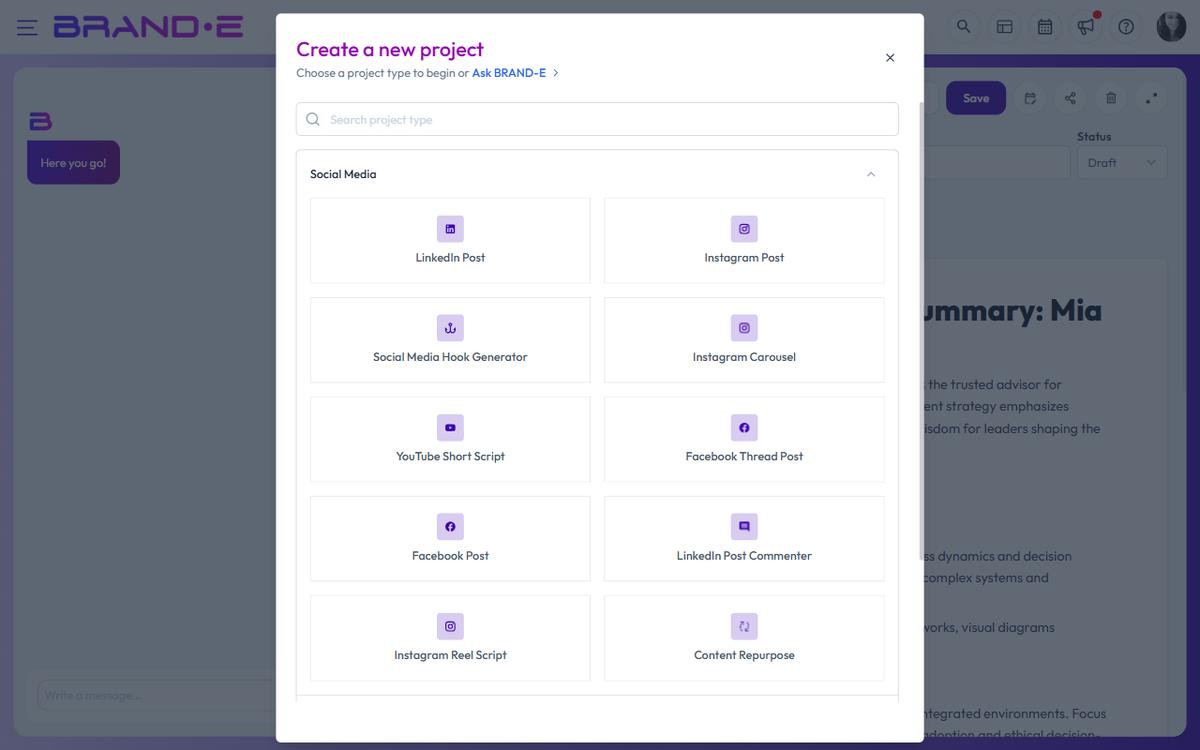
Template Categories and Use Cases
Ideation
When to use: You have a vague direction and need to explore multiple angles or ideas before committing to a single piece of content.
What it generates: A brainstorm output with multiple concepts, headlines, or hooks that you can refine further.
Example: "I want to write about hiring, but what angle resonates?" Create an Ideation project to generate 5 headlines and opening hooks. Pick your favorite and move to a full Long-Form Content project.
Template key: ideation
LinkedIn Post
When to use: You're creating short-form, professional content for LinkedIn. Your audience is on LinkedIn and you want to drive engagement, thought leadership, or lead generation.
What it generates: A post 150–300 words with a hook, body, and CTA. Images can be included.
Example: Weekly thought leadership posts about fractional CFO best practices.
Template key: linkedin-post
Long-Form Content
When to use: You're creating blog posts, whitepapers, case studies, or email sequences. Content that requires depth, narrative structure, and multiple sections.
What it generates: Multi-section content with headings, subheadings, body paragraphs, and optional concluding sections. Full article structure.
Example: A 2,000-word blog post about "Scaling Your Content Operations Without Hiring."
Template key: long-form-content
Write from Scratch
When to use: You have a specific idea, topic, or brief and you want the AI to write custom content without a predefined template structure. Maximum flexibility.
What it generates: Whatever you ask the AI to create, using variables and Brand DNA as context. No assumed format.
Example: A company announcement, a custom email campaign, an internal memo, or any content type not covered by other templates.
Template key: write-from-scratch
Repurpose Content
When to use: You've already created content (blog post, video, podcast episode, case study) and want to reformat it for other channels. Single creation, multi-channel output.
What it generates: Multiple versions of the same content optimized for different channels. Select which formats you want (LinkedIn posts, email, blog summary, social snippets) and the AI rewrites for each.
Example: You wrote a 2,000-word blog post. Repurpose it into a LinkedIn carousel, an email sequence, and social media snippets—all in one project using your source material.
Template key: repurpose-content
Website Copy
When to use: You're creating or updating website pages: homepage, services page, pricing page, product feature descriptions, or landing pages. Content that sells or converts.
What it generates: Structured website copy with headline, subheadline, feature sections, benefits, social proof sections, and CTAs. Optimized for conversion, not engagement.
Example: Complete homepage copy including hero section, value proposition, three key features, customer testimonial, and pricing CTA.
Template key: website-copy
Ask Brande.ai
When to use: You don't know which template to use, or your content need doesn't fit any standard category.
What it generates: A guided conversation where you describe your content goal. Brande.ai suggests which template to use or helps you define the project scope.
Example: "I need marketing collateral for a webinar—should I create a landing page, email invitation, or social campaign?" Use Ask Brande.ai to help you decide, then it guides you to the right template.
Template key: ask-brand-e
Accessing Templates
Browse by Category
In the New Project dialog, templates are grouped into categories:
- Ideation
- Long-Form Content
- LinkedIn Post
- Website Copy
- Write from Scratch
- Repurpose Content
- Ask Brande.ai
Click a category name to expand and see all templates in that category.
Search for a Template
Type at least 3 characters in the Search project type field. Results filter in real-time to match your search. If no templates match, you'll see "{search term} project type not found."
Plan Restrictions
Some templates are locked behind subscription plan upgrades. You'll see a lock icon on the template card. Hover over it to see the tooltip: "Upgrade your plan to access this template".
If you're in trial period, all premium templates show: "You can't access this feature during trial period".
Selecting the Right Template for Your Goal
If your goal is:
- Generate ideas → Use Ideation
- Publish to LinkedIn → Use LinkedIn Post
- Write a blog post or long article → Use Long-Form Content
- Write anything custom or unusual → Use Write from Scratch
- Repurpose existing content → Use Repurpose Content
- Create or update website pages → Use Website Copy
- Unsure which template → Use Ask Brande.ai
What Happens After You Select
Once you select a template, the variables dialog opens. This is where you:
- Provide template-specific context (topic, audience, key points, etc.)
- Select which Brand Voice to use
- Choose reference materials or source content (for Repurpose Content)
- Enable image generation
- Select or create a folder for organization
Template variables are educated guesses based on your Brand DNA. They're filled with placeholders that you customize before generation. The more specific your inputs, the more aligned your output.
Tips for Template Selection
Tip 1: Template choice determines format, not quality Picking Website Copy vs. LinkedIn Post doesn't guarantee better content—it ensures the format is right for your channel. A LinkedIn Post template will never output a website page, regardless of quality.
Tip 2: Use Ask Brande.ai if uncertain If you're unsure which template fits your content goal, start with Ask Brande.ai. It's faster than browsing all categories.
Tip 3: One project per template execution Create one project per template per output. If you want 3 LinkedIn posts on different topics, create 3 separate LinkedIn Post projects. Each project is a separate generation and revision cycle.
Tip 4: Repurpose Content saves time at scale If you publish to 4+ channels, Repurpose Content is your efficiency lever. One source, multiple outputs, one project.
Tip 5: Save templates you use frequently As you develop your publishing routine, you'll gravitate toward 2-3 templates. Don't hesitate to use the same template repeatedly—it's designed for that.