

Appearance
Invite Client Collaborators
Client collaborators need to review and approve your content before publication. Grant them read-only access to projects, approval rights, and nothing else.
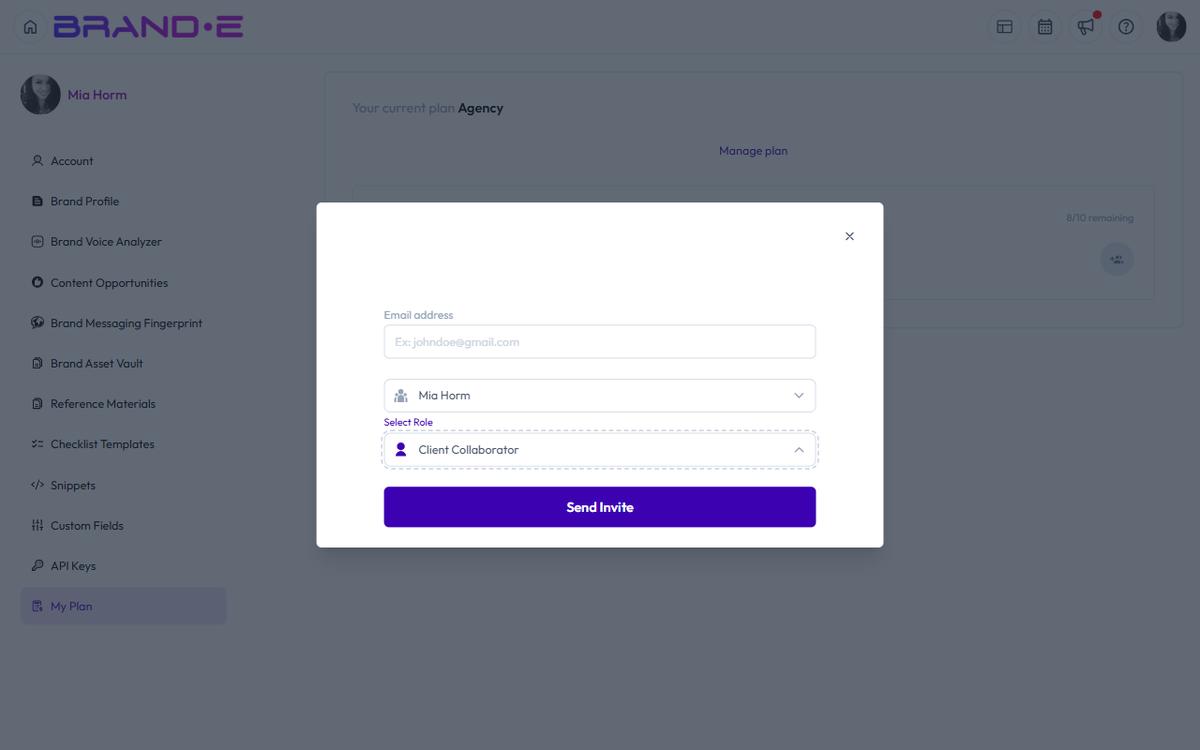
Brande.ai handles the invitation, role assignment, and access control automatically.
Step 1: Open the Invite Modal
Option A: From Account Sidebar
- Click your profile icon (top right) or press Ctrl/Alt+A
- Open Account sidebar
- Scroll to find Invite button or modal link
- Click Invite
Option B: From Profile Dropdown
- Click your profile icon (top right)
- Select Invite from the dropdown menu
The Invite modal opens immediately.
Step 2: Enter Collaborator Email
In the Email address field, type the client collaborator's email.
The field shows placeholder text: "Ex: johndoe@gmail.com"
Validation rules:
- Email field is required
- Email must be in valid format (e.g., name@example.com)
- You cannot invite yourself
- A user can only be invited once per brand (no duplicate invites)
Step 3: Select the Brand
In the Select Brand dropdown, choose which client brand to invite them to.
Dropdown displays:
- All brands you own or manage
- Brand names with clear labels
You can only invite them to brands you have access to.
The invite dialog accepts one brand per invitation — to add the same person to multiple brands, send a separate invite for each.
Step 4: Select the Role
Choose the collaborator's role:
Brande.ai exposes exactly two roles in the invite dialog:
Brand Collaborator (full editing access)
- Can view, create, and edit projects for the brand
- Can edit Brand Profile, Brand Voice, Reference Materials, and other brand settings
- For internal team members and agency staff
Client Collaborator (read-only with approval rights)
- Can view all projects and content for this brand
- Can approve or unapprove projects before publication
- Cannot edit Brand Profile, create projects, or delete content
- For clients, stakeholders, and reviewers
Select Client Collaborator for external clients and stakeholders, Brand Collaborator for everyone who needs to edit.
Step 5: Send Invite
Click the Send Invite button.
Brande.ai sends an email invitation to the collaborator's email address. The email contains:
- A welcome message
- A link to join the brand
- Instructions on how to log in or create an account
Success message appears in the modal: "{email} has been invited to brand {brandName}"
The invite is now sent. You can close the modal.
What the Collaborator Sees
When they log in (or create an account after following the invite link), they see:
Brands Dropdown Only the brand(s) they've been invited to. If invited to Client A brand, they only see Client A in the Brands dropdown.
Dashboard Projects and calendar for that brand only. No access to other client brands.
Projects A full list of projects for their brand with two key additions:
- Approve button — Mark the project as approved
- Unapprove button — Reject approval if revisions are needed
Approval Status Each project shows approval history:
- "Pending Approval"
- "Approved by [Collaborator Name] on [Date]"
- "Unapproved by [Collaborator Name] on [Date]" (if they reject)
Read-Only Restrictions They cannot:
- Edit Brand Profile
- Create new projects
- Delete projects or content
- Modify brand voice or messaging
- Manage team members
- Access Account settings
They see a "Premium Feature" gate or disabled button if they try to access restricted areas.
Managing Collaborator Access
After sending an invite:
Resend an Invite There isn't a one-click resend in the current dialog. If the collaborator didn't receive the original email, send a new invite to the same address.
Remove Access Remove the user from the brand using your standard team-management workflow. Once they're no longer a member of the brand, links and access stop working.
Change Role There is no in-app role-change action today. To switch a user from Brand Collaborator to Client Collaborator (or vice versa), remove and re-invite them with the new role.
Bulk Invites
Bulk invites are not supported in the dialog — send invites one at a time. For five client stakeholders on the same brand, that means five separate invites.
Approval Workflow Best Practices
Invite the Right People
- Clients: Brand owner or CMO (decision maker)
- Internal review: Content strategist or quality lead
- Stakeholder feedback: Product, sales, or marketing manager
Set Clear Expectations Mention in your kickoff email that client collaborators will receive approval requests for all projects, and their timely feedback keeps the content schedule on track.
Use Project Names for Clarity Name projects clearly so approvers know what they're reviewing:
- "LinkedIn Post — Hiring Challenges (Approved)" instead of "Project_Draft_1"
- "Email — Product Launch Campaign (Pending Review)" instead of "Email_v2"
Track Approval History Each project shows who approved it and when. This creates an audit trail for quality and accountability.
Troubleshooting
Q: The collaborator says they didn't receive the invite email. A: Check your email address for typos. Resend the invite. Ask them to check spam/junk folders. The invite email comes from Brande.ai with a verification link.
Q: Can I invite someone who doesn't have a Brande.ai account yet? A: Yes. They receive an email invite with a link to create an account or log in. They don't need to pre-create an account.
Q: What if they approve a project but I want to unapprove it? A: Any user with access to the project can click Unapprove to clear the approval. The project returns to draft and can be revised.
Q: Can I invite the same person to multiple brands? A: Yes — send a separate invite per brand. There is no multi-brand invite shortcut.