

Appearance
Create a Campaign
Every campaign starts with a short brief. Brande.ai uses it to scope the entire research sprint that follows.
Access Campaign Studio
Click Campaign Studio in the topbar navigation. You'll land on the Campaign Studio dashboard.
The Campaign Studio dashboard
The dashboard shows:
- Your active campaigns, as a list of cards with a status badge (Brief, Research, Review, or Blueprint)
- Your monthly campaign-run usage against your plan's limit
- How many campaigns currently have a blueprint ready to act on
- A button to start a new campaign
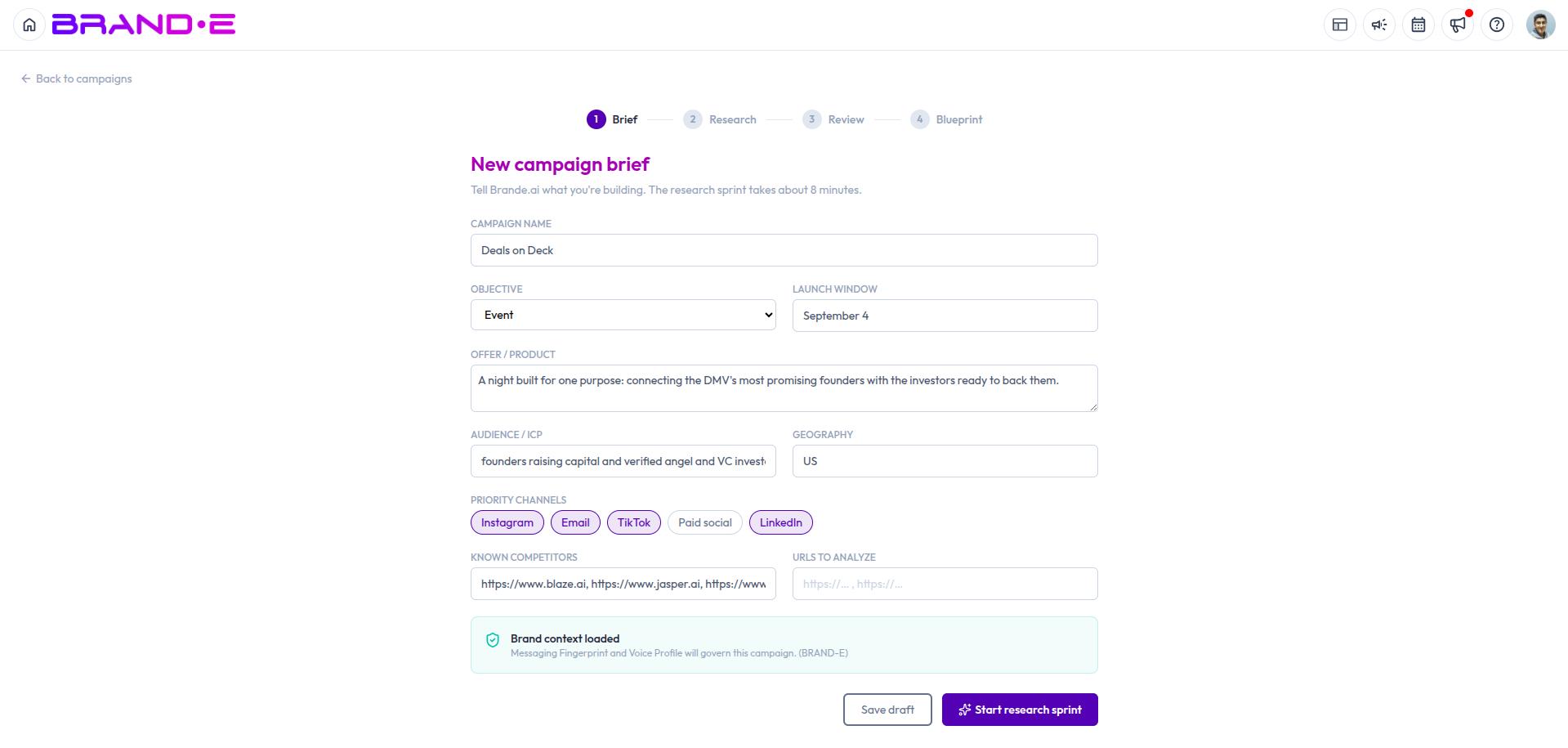
Fill out the campaign brief
Click New Campaign to open the brief form:
- Campaign name
- Objective — Launch, Evergreen, Webinar, Waitlist, Reactivation, Event, or Other
- Offer — what you're promoting
- Audience — who the campaign targets
- Geography (optional)
- Launch window (optional) — when you want this campaign to go live
- Channels — where the campaign will run
- Known competitors — prefilled from your brand's onboarding settings; add or remove as needed
- URLs to analyze (optional) — pages you want the research sprint to consider
You can save as a draft and come back later, or start the research sprint directly from the brief.
What happens when you start research
Starting research kicks off Brande.ai's multi-agent research sprint on your brief — see Review Campaign Research for what happens next and how to read the results.
Plan gating
Campaign Studio's availability and monthly usage depend on your subscription plan:
- Feature access — If your plan doesn't include Campaign Studio, you'll see an upgrade banner instead of the dashboard content.
- Monthly run limit — Each research sprint you start counts against a monthly quota (e.g., a handful of runs/month on lower tiers, more on Agency plans). Resuming a stuck or failed run does not use up an additional run. If you're on a brand with multiple collaborators, the quota is shared and counted against the brand owner's plan — collaborators don't carry a separate quota of their own.
If you hit your limit, the dashboard shows a Limit Reached banner reading "Upgrade your plan to increase the limit." Click Upgrade Now, or wait until next month's quota resets.
Check your current plan and usage at Account > My Plan.