

Appearance
Export Content to DOCX or PDF
Turn your projects into professional documents. Export any project as a PDF or Word file in seconds—perfect for sharing with stakeholders, clients, or your own records.
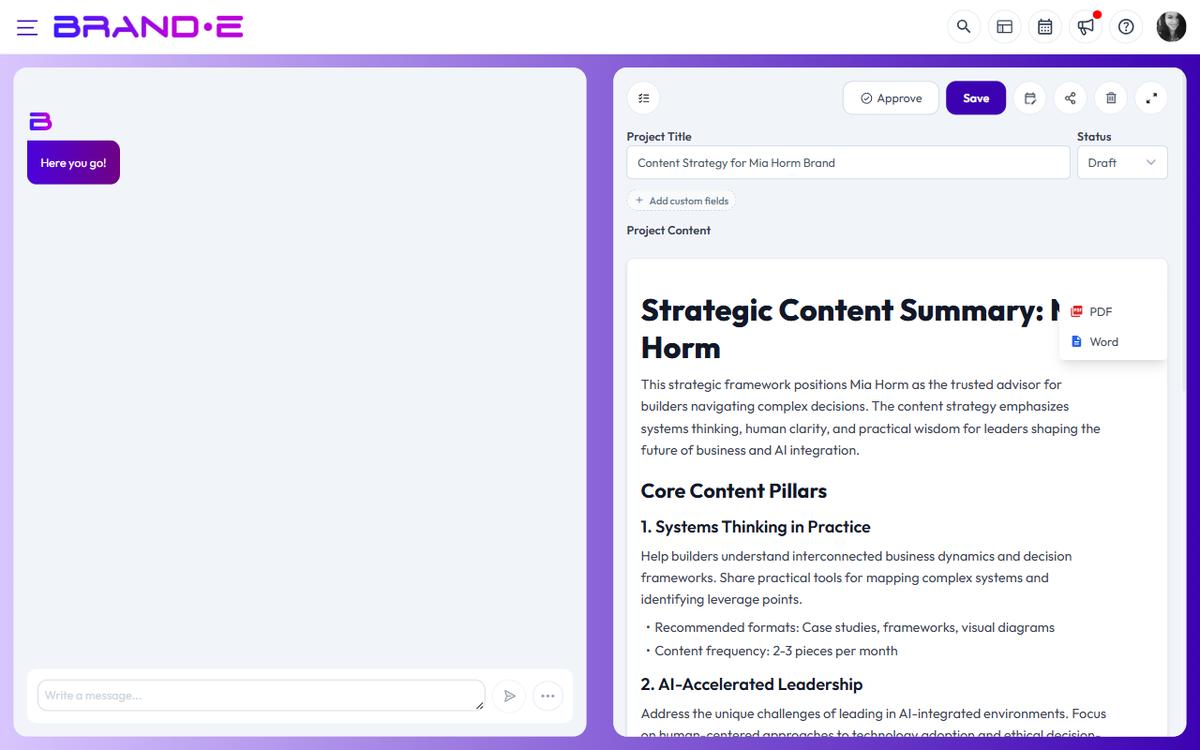
Export your project
While editing a project, look for the Export button (file download icon) in the top toolbar:
- Click the Export button
- A dropdown menu appears with two options: PDF and Word
- Click your preferred format
- The file downloads automatically
Toast notification confirms: "Project will be exported shortly."
Export as PDF
Choose PDF when you want:
- A read-only, presentation-ready document
- Something stakeholders can view without Microsoft Office
- A file that preserves exact formatting across devices
- An archive copy of your project
PDF exports include:
- All text content
- All images (inline where they appear in the editor)
- Proper spacing and line breaks
- Professional page layout
The file saves as [ProjectName].pdf to your Downloads folder.
Export as Word
Choose Word when you want:
- An editable document for further refinement
- Something stakeholders can modify before publishing
- Better compatibility with corporate workflows
- A file you can share via email or Google Drive
Word exports include:
- All text content with formatting (bold, italic, lists, etc.)
- All images embedded in the document
- Proper page breaks and section formatting
- Editable text and metadata
The file saves as [ProjectName].docx to your Downloads folder.
Export is triggered from the editor toolbar via a share-network-style icon button (no visible "Export" label). The menu exposes PDF (rendered client-side via html2pdf) and DOCX (server-side via the /server/projects/exports endpoint, using @turbodocx/html-to-docx for reliable Word conversion).
Export limitations
- Both Brand Collaborators and Client Collaborators can export projects — there is no role-based export gate today
- Very long projects may take a few seconds to export
- Some advanced editor formatting may not transfer perfectly to Word
- Collaborator comments are not included in exports
When to export
Export when you need to:
- Share a draft with stakeholders for offline review
- Send content to a designer for visual layout
- Archive a finished project
- Print a physical copy
- Provide a "final" version separate from the editor
Don't need to export for:
- Publishing to social media (use the Share button instead)
- Sending to publishing integrations (use Publish to Channels)
- Internal team review (use Comments in the editor)
After exporting
The exported file is a snapshot of your project at export time. Changes you make after exporting won't update the file:
- If you edit the project further, export again
- Share the new version with stakeholders
- Keep version numbers if sending multiple drafts
Troubleshoot export issues
Export takes too long: Very long projects or images may slow export. Try again in a moment.
File format looks wrong: Close and reopen the file. Email clients sometimes preview incorrectly.
Images are missing: Ensure images were generated or uploaded successfully. Re-export if needed.
Word file won't open: Try opening in Google Docs, LibreOffice, or the latest Microsoft Word. Very old Office versions may have compatibility issues.