

Appearance
Update Theme and Language Preferences
Customize how Brande.ai looks and what language it speaks.
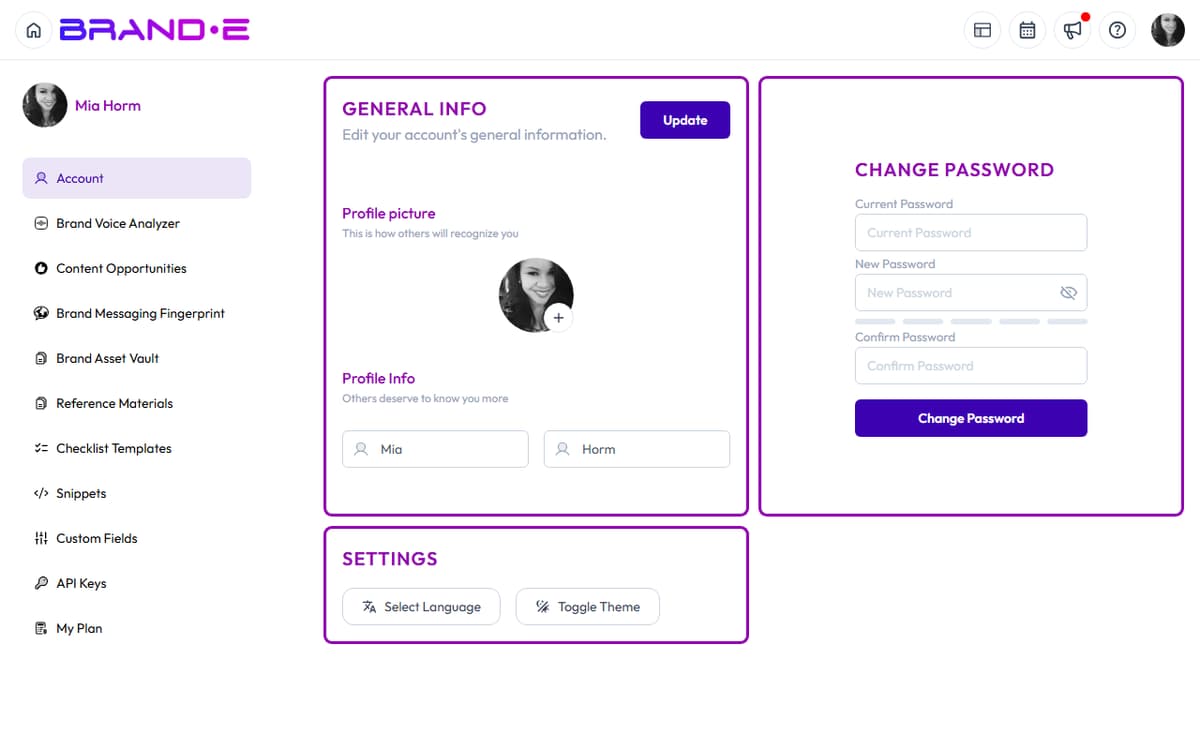
Change theme (light/dark mode) or language (English/Spanish) from the Settings section in your Account page.
Open Settings
- Go to your Account page (click profile icon > Account)
- In the Account sidebar, find and click Settings
- The Settings page displays your theme and language options
Change Language
In the Language section, you see a dropdown with language options:
Available Languages:
- EN with flag icon — English (default)
- ES with flag icon — Español (Spanish)
English and Spanish are the only supported UI languages today. Additional languages aren't available from the language panel.
To Change Language:
- Click the Language dropdown
- Select your preferred language
- The entire interface switches language immediately
What Changes:
- All UI labels and buttons
- Navigation menu items
- Button text
- Form labels
- Dialog titles and content
- Error and success messages
- Documentation links (if available in that language)
What Doesn't Change:
- Content you've created (your projects, Brand DNA, etc. remain in the language you created them in)
- Dates and numbers may use regional formatting based on your chosen language
Your Selection is Saved: Your language preference persists across sessions. Next time you log in, Brande.ai appears in your chosen language.
Toggle Theme (Light/Dark Mode)
In the Theme section, you see a button to toggle between light and dark mode:
Light Mode (Default)
- White or light gray background
- Dark text and icons
- Higher contrast for readability
- Lower eye strain in well-lit environments
Dark Mode
- Dark background (gray or nearly black)
- Light text and icons
- Reduced brightness for eye comfort
- Better for low-light environments or sensitive eyes
To Toggle Theme:
- Click the Toggle Theme button (labeled "Light" or "Dark" depending on current mode)
- The entire interface switches immediately
- All pages, sections, editor, and sidebars update
Your Selection is Saved: Your theme preference persists across sessions. Next time you log in, Brande.ai appears in your chosen theme.
What Changes:
- Dashboard and all pages
- Sidebar and navigation
- Editor background and text
- Modals and dialogs
- Buttons and input fields
- Calendar views
- Project cards
What Doesn't Change:
- Your content or projects (only the interface changes)
- Brand colors (if you have brand guidelines with specific colors, those may appear differently in different themes)
Why Use Dark Mode
Eye Comfort Reduces strain when working late or in low-light conditions.
Battery Life On OLED and certain modern screens, dark pixels use less power than light pixels.
Aesthetic Preference Some people simply prefer the look of dark interfaces.
Time of Day Many users switch between light mode (morning/afternoon) and dark mode (evening/night).
Why Use Light Mode
Readability Higher contrast makes text easier to read, especially for people with certain vision conditions.
Brightness Matching In bright environments (sunny rooms, offices), light mode matches the ambient brightness better.
Print-Friendly Light backgrounds print better than dark backgrounds.
Keyboard Shortcut for Theme
There is no dedicated keyboard shortcut for toggling theme. Use the Toggle Theme button on the Account page's Settings card.
Language-Specific Behavior
When you change to Spanish (ES):
Expected Changes:
- "New Project" becomes "Nuevo Proyecto"
- "Dashboard" becomes "Panel"
- "Save" becomes "Guardar"
- Dates format according to Spanish conventions
Brand Profile and Content: Your Brand Profile, projects, and all content remain in whatever language you originally created them in. Language preference only changes the UI.
If You Want Content in Another Language: Project creation in Brande.ai doesn't expose a language switch. Specify the target language directly in your prompt or template variables (for example, "Write this LinkedIn post in Spanish"), and the AI will generate accordingly using your Brand DNA.
Troubleshooting
Q: I changed the language but some text is still in English. A: Certain elements (like user-generated content) won't change language. Only the Brande.ai interface changes. Refresh your browser to ensure all UI elements update.
Q: Dark mode looks strange on my projects. A: Dark mode changes the interface, not your content. If your content has specific colors or design, they appear as created. This is intentional—your content's appearance shouldn't change based on your theme preference.
Q: Can I set different languages for different parts of the app? A: No. The language preference applies to the entire interface. You set one language and the whole app speaks that language.
Q: I use multiple languages. Can I switch between them easily? A: Yes. Go to Settings, click the Language dropdown, and select your preferred language. It takes 3 seconds.
Q: Will my team see the same language/theme as me? A: No. Each user has their own language and theme preferences. Your team members see the interface in whatever language/theme they've set for themselves.
Q: Does changing theme affect exported content or reports? A: No. Theme is a UI-only preference. Exported PDF and DOCX files use a fixed light style regardless of your in-app theme.