

Appearance
Manage Notifications
Notifications keep you informed about project approvals, team activity, and important updates without being intrusive.
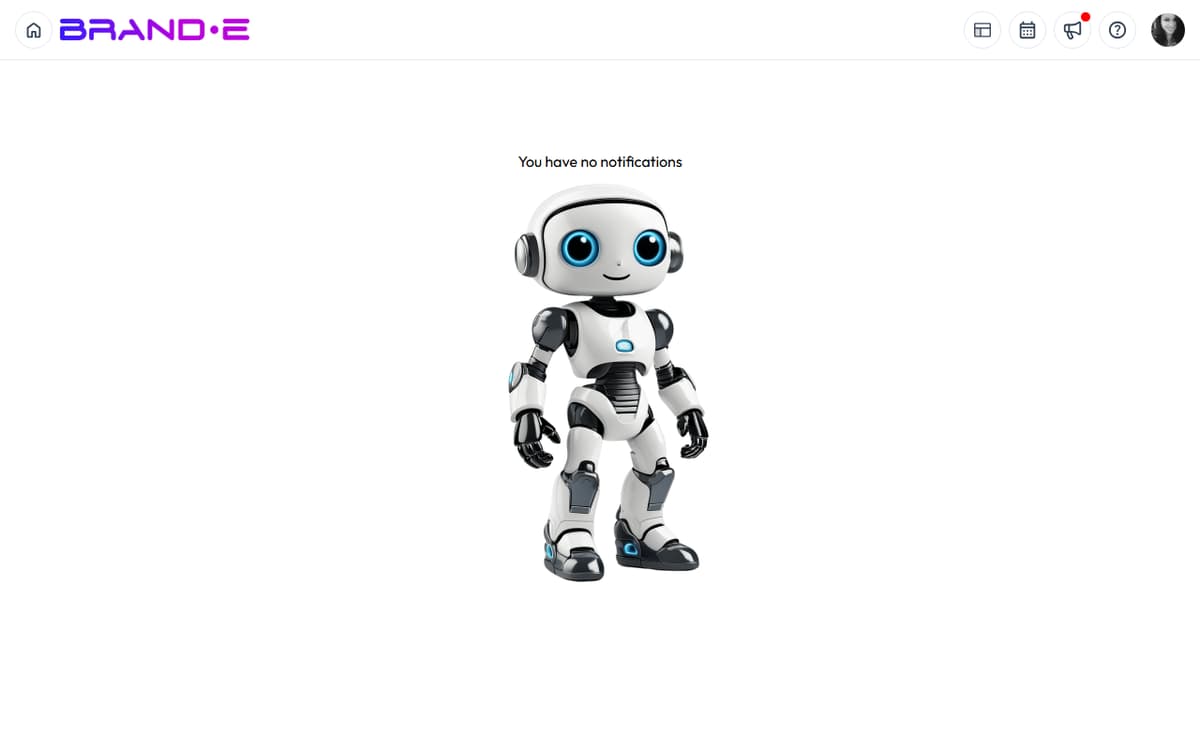
Control what you're notified about and how you're notified from your Notifications settings.
Access Notifications
Option A: Notifications Icon (Quick Access) In the header (top of the page), click the Notifications icon (bell icon or similar).
The notifications panel slides open showing your recent notifications.
Option B: Profile Dropdown
- Click your profile icon (top right)
- Select Notifications from the dropdown
- Notifications page loads
Option C: Notifications Page
- Click your avatar (top right) and choose Notifications, or navigate directly to
/notifications - The full Notifications page opens, showing all current invites and activity
Note: Notifications is not a primary item in the left navigation — the bell icon in the header and the avatar dropdown are the two entry points.
Notifications Page
The Notifications page displays:
Notification List
- Unread notifications at the top
- Read notifications below
- Each notification shows:
- What happened (e.g., "Project approved by Sarah")
- Who it involves
- When it happened
- An action link (e.g., "View Project")
Pagination If you have many notifications, they're displayed in pages (e.g., 20 per page).
Mark as Read/Unread Click a notification to mark it as read. Or click a checkbox to select multiple and mark as read in bulk.
Delete Notifications
There is no per-notification delete in the current Notifications page. Notifications stay in the list — use the bulk mark-as-read action to clear visual clutter.
Notification Types
You may receive notifications for:
Project Approvals "Sarah Martinez approved your LinkedIn Post — Hiring Content project"
- Shows who approved
- Shows which project
- Action: Click to view the project
Project Rejections "Sarah Martinez unapproved your LinkedIn Post — Hiring Content project"
- Shows who unapproved
- Shows why (if they left a comment)
- Action: Click to view and revise the project
Team Member Invites "You've been invited to the [Brand Name] brand"
- Shows who invited you
- Shows which brand
- Action: Click to accept or view invite
Team Activity (if enabled) "John created a new project: Blog — Product Updates"
- Shows team member action
- Shows what they did
- Action: Click to view the project
Content Agent Recommendations "New Content Agent recommendations are available"
- Shows how many recommendations
- Action: Click to view recommendations
Plan Reminders "You're approaching your project limit for this month"
- Shows which limit you're approaching
- Action: Click to upgrade plan
System Updates "Brande.ai has a new feature: Enhanced image generation"
- Shows what's new
- Action: Click to learn more
Notification Settings
Brande.ai does not currently expose a notification-preferences page. The notifications you receive are determined by what's happening on brands you have access to (invites, project activity, etc.); there is no UI to enable/disable individual types, change frequency, or pick channels.
Possible Settings:
Notification Types
Toggle which notification types you want to receive:
- [ ] Project approvals
- [ ] Project rejections
- [ ] Team member activity
- [ ] Content Agent updates
- [ ] Plan reminders
- [ ] System updates
Uncheck to disable notifications for that type.
Notification Frequency
Choose how often you receive notifications:
- Real-Time — Instant notification as things happen
- Digest — One email per day summarizing activity
- Weekly — One email per week summarizing activity
- Never — Disable notifications
Notification Channels
Choose how you're notified:
- [ ] In-App notifications (Notifications icon in header)
- [ ] Email notifications
- [ ] Push notifications (if you've enabled browser notifications)
Uncheck to disable that notification channel.
Do Not Disturb Hours
Do Not Disturb is not available today. If you need quiet hours, mute the browser tab or your email client during those windows.
Notification Badge Count
The Notifications icon in the header displays a badge with the count of unread notifications.
For example: A bell icon with a red "3" badge means you have 3 unread notifications.
The badge updates in real-time as you receive notifications.
Click the icon to see your notifications and mark them as read.
Managing Notification Overload
If you receive too many notifications:
Option 1: Disable Notification Types Go to Notification Settings and disable types you don't need (e.g., "Team Member Activity").
Option 2: Switch to Digest Change from Real-Time to Weekly digest. You get one email per week instead of constant notifications.
Option 3: Enable Do Not Disturb Set work hours and disable notifications outside those hours.
Option 4: Disable Email Notifications Keep in-app notifications but disable email. Check the Notifications page manually instead.
Notification Best Practices
Enable Real-Time for Critical Notifications
- Project approvals (so you know when client signs off)
- Urgent team messages
Use Digest for Low-Priority Notifications
- Team member activity
- Content Agent updates
- System announcements
Check Notifications Regularly Even if you disable email, check your in-app notifications weekly to catch important updates.
Per-brand notification settings are not available today. Notification visibility is determined by which brands you've been invited to.
Troubleshooting
Q: I'm not receiving notifications. A: Check:
- Notifications are enabled in Settings
- Your notification channels are enabled (email, in-app, etc.)
- Check your email spam folder (notifications may be marked as spam)
- Refresh your browser (sometimes notifications are cached)
- Contact support if notifications still don't appear
Q: I'm receiving too many notifications. A: Go to Notification Settings and:
- Disable notification types you don't need
- Switch from Real-Time to Digest
- Set Do Not Disturb hours
- Disable email and rely on in-app only
Q: A notification says someone approved my project but I don't see the project. A: Click the action link in the notification to go directly to the project. Or navigate to your Projects page and search for the project name.
Q: How long are notifications kept? A: There is no documented retention policy. Treat critical notifications as transient and act on them when they arrive.
Q: Can I customize notification sounds? A: No. Brande.ai does not produce notification sounds; alerts are visual only.