

Appearance
Share and Publish Content
Sharing and publishing are different paths to getting your content out. Understand when to use each so your content reaches the right people through the right channels.
Share vs. Publish: What's the difference?
Sharing means giving collaborators or followers a link to view your project:
- Share a link with internal team members for review
- Share on social media to let followers read or repost
- Recipients see your content but it's not "posted" anywhere officially
- Good for feedback, discussion, or informal distribution
Publishing means posting content directly to a platform or channel:
- Publish a blog post to your WordPress site
- Publish a social post to Instagram, LinkedIn, or Twitter/X
- Publish a listing to Google My Business
- Content goes live on official channels under your brand account
- Tracked and indexed by platforms
When to share
Use sharing when you:
- Need stakeholder or client feedback before going live
- Want to crowdsource ideas or gather comments
- Are distributing to internal team (not public)
- Want to let followers repost without posting officially
- Don't have publishing setup for that platform yet
When to publish
Use publishing when you:
- Are ready to post officially on a platform
- Have integration credentials set up (OAuth or API key)
- Want automatic posting on schedule
- Need a permanent post on your brand channels
- Track which content performed where
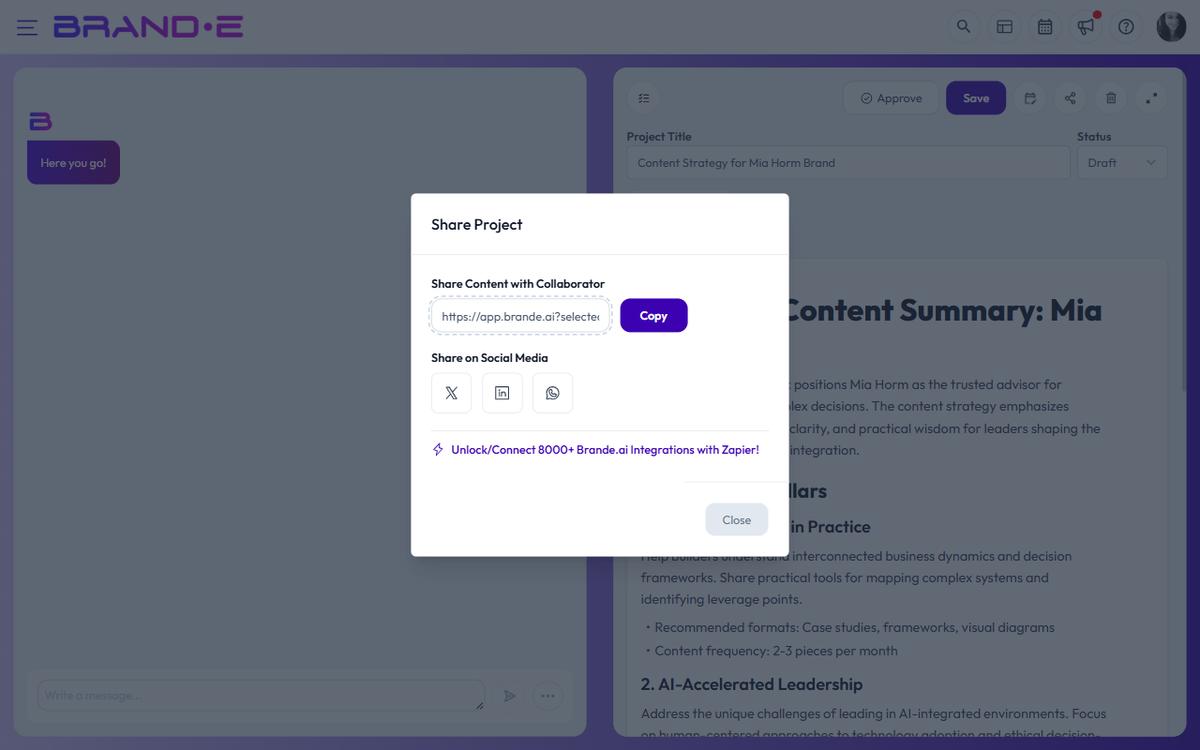
Share a project
Click the Share button (network icon) in the top toolbar:
- A modal opens with two sections: "Share Content with Collaborator" and "Share on Social Media"
Share with a collaborator (link sharing)
Share Content with Collaborator section:
- A shareable link appears (URL to your project)
- Click Copy to copy the link to your clipboard
- Paste the link in:
- Email to stakeholders
- Slack message to team
- Project management tool
- Anywhere collaborators work
Anyone with the link can view the project. They see your content but cannot edit (read-only access).
Collaborator limits:
- Your plan includes a limit on how many people can collaborate
- If you've reached the limit: "You have reached collaborator limit, upgrade your plan"
- Upgrade your subscription to add more collaborators
- Existing collaborators retain access; only new additions hit the limit
Share on social media
Share on Social Media section:
Choose from available platforms:
- X (Twitter): Click the X/Twitter button to share content
- LinkedIn: Click the LinkedIn button to share professionally
- WhatsApp: Click the WhatsApp button to share with contacts
When you click a platform:
- Window opens to that platform's share interface
- Your project content is pre-filled
- You can edit the message or add comments
- Click "Share" or "Post" on the platform to send
This is informal sharing—not the official "publish" route. Good for:
- Viral distribution (let followers repost)
- Real-time engagement on social
- Quick sharing without scheduling
Publish to channels (integrations)
To post officially on platforms, you need to set up publishing integrations. See "Publish Content Directly to Channels" for details.
Available platforms for publishing:
- Social Media: Instagram, Facebook, LinkedIn, Twitter/X
- Blogs & Sites: WordPress, Google My Business
- Email Marketing: HubSpot
Export instead of sharing
If collaborators don't have Brande.ai accounts:
- Click Export (file download icon)
- Choose PDF or Word
- Send the file via email or file sharing service
This gives them a static copy they can read offline.
Sharing security
When you share a project:
- The link is a stable URL of the form
{your-app-url}?selectedProject=[projectId] - Recipients still need a Brande.ai account with permission to view that brand’s projects — the link by itself does not grant access
- Recipients cannot edit the project unless they have an editor role on the brand
- The link does not expire and there is no built-in "stop sharing" or revocation button
Manage shared access
To limit who can see a shared project, the practical levers are:
- Remove the recipient from the brand (or change their role) so the link no longer authenticates them
- Move the project to a folder only the right people can see, or archive it
- Be deliberate about who you share the link with — anyone added to the brand will be able to open it