

Appearance
Change Your Password
Your password is your account security. Update it regularly and keep it confidential.
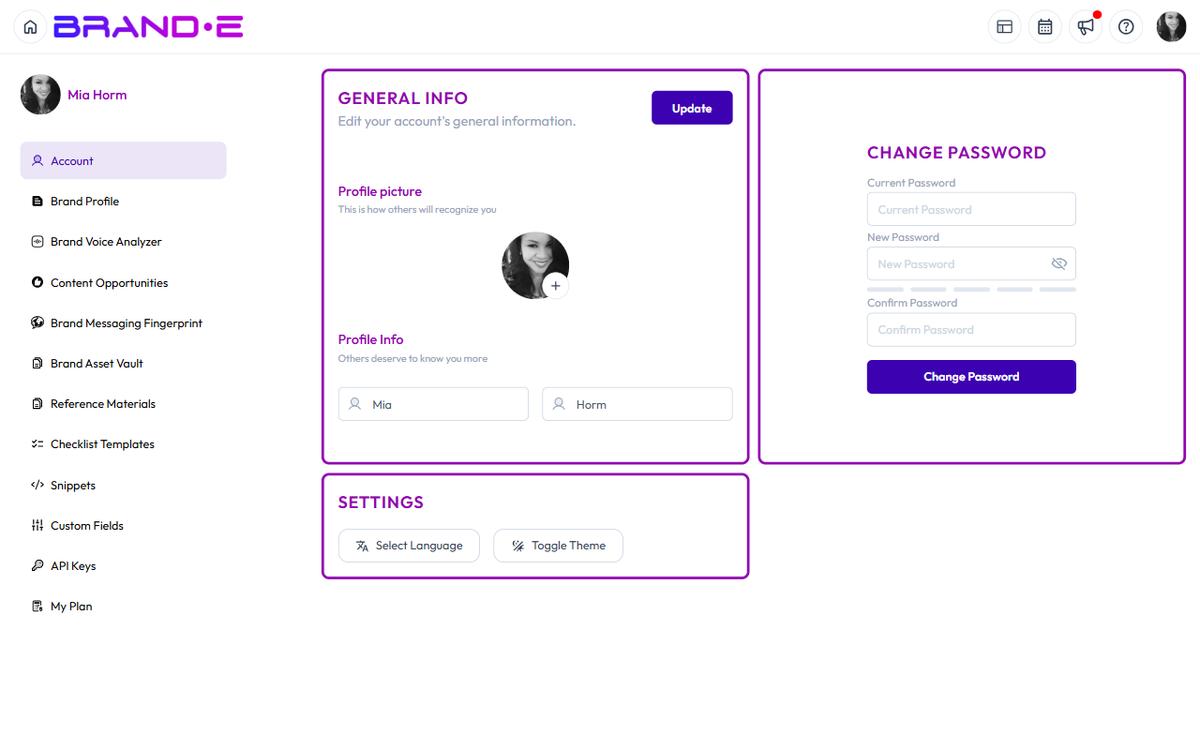
Change it anytime from your Account page in under one minute.
Open Change Password Section
- Go to your Account page (click profile icon > Account)
- Look for Change Password section
- You see three fields ready for input
Password Change Form
The Change Password section contains three fields:
Current Password Enter your current password to verify your identity.
This prevents someone with access to your unlocked computer from changing your password without knowing the original.
New Password Enter your new password.
Password requirements:
- Minimum 8 characters
- May include: uppercase, lowercase, numbers, symbols
- Cannot be the same as your current password
The form shows a live strength indicator with warnings and suggestions as you type.
Create a strong password:
- Mix uppercase and lowercase letters (Aa)
- Include numbers (123)
- Include symbols (!@#)
- Avoid common words or patterns
- Avoid your name, brand name, or dictionary words
Confirm Password Re-enter your new password to confirm you typed it correctly.
Must match the New Password field exactly.
Validation rule: "Password must match"
If the passwords don't match, you'll see an error message when you try to submit.
Submit Password Change
- Fill in all three fields
- Click Submit button (or "Save" / "Change Password")
- Brande.ai validates your current password
- If validation succeeds: "Password changed successfully"
- If validation fails: "Current password is incorrect" or similar error
Next Login
After changing your password:
- You remain logged in (no forced logout)
- Next time you log in, use your new password
- Your old password no longer works
Test your new password by logging out and back in if you want to confirm it works.
Password Best Practices
Change Password Periodically Update your password every 3-6 months, or immediately if you suspect it's been compromised.
Use Unique Passwords Don't reuse the same password across multiple tools or services. If one service is breached, your Brande.ai account stays secure.
Use a Password Manager Tools like 1Password, LastPass, or Bitwarden generate and store strong passwords securely. You only need to remember the password manager's password.
Never Share Your Password Never give your password to:
- Colleagues (even trusted ones)
- Brande.ai support team (they don't need it)
- Chat or email (email is not encrypted)
Don't Write It Down Avoid sticky notes or documents. Use a password manager instead.
Suspicious Activity If you see login activity you don't recognize, change your password immediately and contact support.
Troubleshooting
Q: I forgot my current password. A: Click Forgot Password on the login page. You'll receive a password reset email. Follow the link to reset your password.
Q: The system says "Password must match" but I entered the same thing twice. A: Check for:
- Extra spaces at the end
- Caps Lock on
- Different special characters (e.g., - vs. _)
- Copy-paste issues
Type both passwords slowly and carefully.
Q: I changed my password but can't log in. A: Make sure you're using the new password, not the old one. If you still can't log in, use the Forgot Password option on the login page.
Q: Can I use the same password I had before? A: No. Brande.ai prevents you from reusing your immediately previous password. This prevents accidentally resetting to an old, potentially compromised password.
Q: How often should I change my password? A: Change it every 3-6 months as a best practice. Change immediately if:
- You suspect it's been compromised
- You've shared it with someone (even accidentally)
- You've used it on another service that was breached
- You haven't changed it in over a year