

Appearance
Use Client Approval Flows
Client collaborators can view all projects for their brand and approve or reject them before publication.
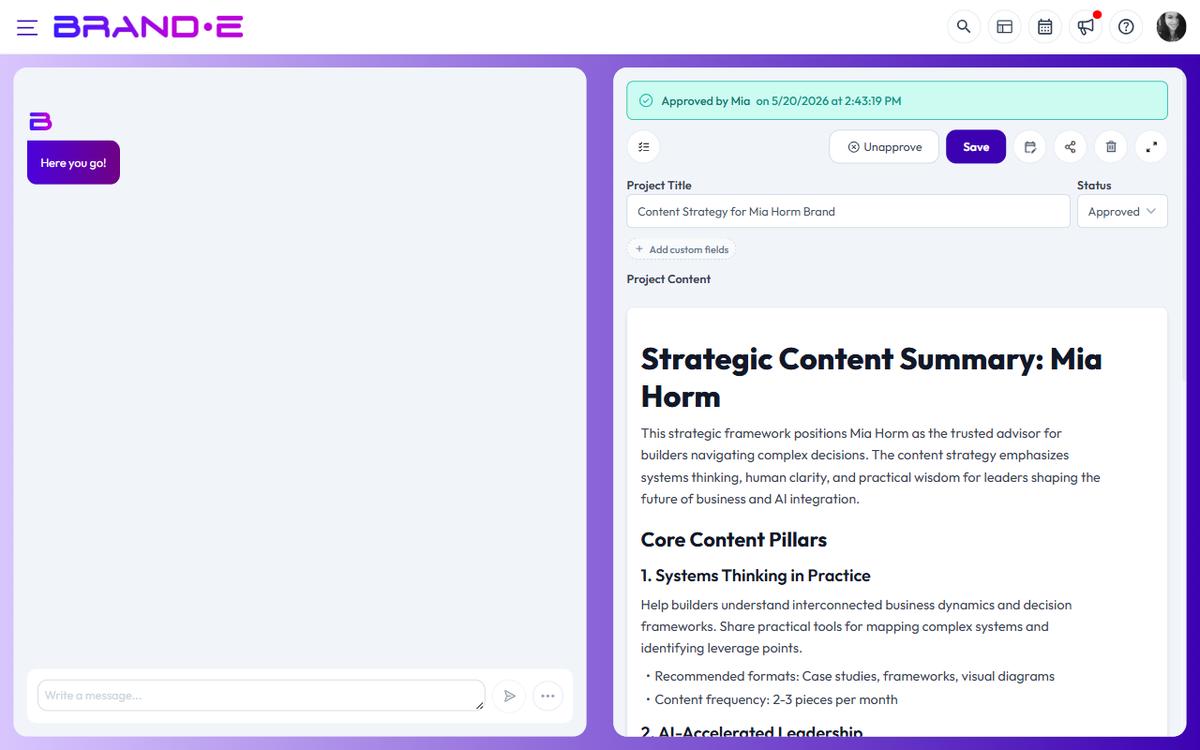
Each project shows an approval status and history. Once approved, the project is marked with the collaborator's name and approval date—creating an audit trail and freeing you to publish with confidence.
Understanding Client Approval
When you invite a client collaborator to a brand, they receive:
- Read-only access to all projects and content
- Two action buttons per project: Approve and Unapprove
- No ability to edit Brand Profile, create projects, or delete content
This design keeps clients in a review loop without giving them power to accidentally (or intentionally) break your workflow.
Approval Status
Each project displays one of three statuses:
Pending Approval The project has been created and is waiting for client sign-off. Show this to the client collaborator and ask for feedback.
Approved by [Name] on [Date] The client collaborator clicked the Approve button on this project. You can now publish with confidence.
Example: "Approved by Sarah Martinez on March 27, 2024"
Unapproved by [Name] on [Date] (Rejected) The client collaborator changed their mind or found issues. The project is back in revision status. They cannot leave comments directly in Brande.ai, so clarify the issue outside the platform.
Example: "Unapproved by Sarah Martinez on March 27, 2024"
Step 1: Create Content for Approval
Create a project using your normal workflow:
- Click New Project (Ctrl/Alt+N)
- Select a template (e.g., LinkedIn Post, Blog Post, Email)
- Configure template variables
- Generate and refine content in the editor
- The project saves with status "Planning" (default)
The project is now visible to all collaborators with access to this brand—including client collaborators.
Step 2: Notify Client for Review
You and the client collaborator are working within Brande.ai for the approval flow itself, but you'll likely notify them outside the platform.
Send an email, Slack message, or project management notification:
"Review the LinkedIn campaign in Brande.ai > Projects > [Project Name]. Click Approve when you're satisfied. The approval date will be recorded."
Client collaborators navigate to the project within Brande.ai.
Step 3: Client Collaborator Reviews and Approves
The client collaborator:
- Logs into Brande.ai
- Switches to their brand (if they have multiple)
- Navigates to Projects or the dashboard
- Finds the project awaiting approval
- Reviews the content
- Clicks the Approve button
Result: The project status changes to "Approved by [Collaborator Name] on [Date]".
Approval activity surfaces on the in-app Notifications page (/notifications). There is no separate transactional email for approvals today — check Notifications regularly when you're waiting on a client.
Step 4: Publish After Approval
Once approved, you can publish the content to the client's channels:
- Open the approved project
- Review the approval status (confirms approval)
- Copy the content or use any publishing integration you have set up
- Publish to the client's social media, blog, email, etc.
- Update the project status to "Published" or "Completed"
The approval status remains in the project history, creating a permanent record that this content was reviewed and approved.
Rejection Workflow
If the client collaborator finds issues:
- They click the Unapprove button
- The project status changes to "Unapproved by [Name] on [Date]"
- The change appears on the in-app Notifications page; there is no separate email for unapproval
You must now:
- Contact the client to understand what revisions they need
- Edit the project content in the editor
- Mark the project back to a revision status (e.g., "Planning")
- Notify the client that revisions are ready
- They click Approve again
The approval history logs both rejections and re-approvals, giving you a complete audit trail of changes.
Plan Gating: Approval Workflows
Client approval flows require the project_approval plan feature.
Check your subscription:
- Free Plan — No approval workflows
- Starter Plan — Approval workflows available
- Pro Plan — Approval workflows available
- Agency Plan — Approval workflows available (unlimited collaborators)
If you're on a plan that doesn't support approvals, you see: "Premium Feature: Upgrade your plan to unlock client approval workflows and more"
Click Upgrade Now to access this feature.
Best Practices for Approval Flows
Set Clear Deadlines When you send content for approval, mention: "Please review and approve by EOD Friday. If I don't hear from you by Saturday morning, I'll publish as-is."
This prevents approval bottlenecks from slowing your content calendar.
Use Project Names for Context Name projects clearly so the approval status makes sense:
- "LinkedIn Post — Hiring Content (Approved)"
- "Blog Draft — Product Update (Pending Approval)"
- "Email Campaign — Black Friday Promo (Unapproved — Needs Revision)"
Batch Approvals Send 3-5 projects for approval at once if they're similar in topic or timeline. Clients often review in batches rather than one-by-one.
Create an Approval Checklist Use Checklist Templates to create a standard approval checklist:
- Brand voice check — Does the tone match Brand DNA?
- Audience relevance — Does this resonate with our target customer?
- Claims verification — Are all factual claims accurate and sourced?
- CTA alignment — Does the call-to-action match our business objectives?
- Stakeholder sign-off — Does marketing/sales/product approve?
Assign this checklist to every project. Run through it before sending to the client.
Separate Approvers by Role If you have multiple client stakeholders:
- Marketing Manager — Approves brand voice and positioning
- Product Manager — Approves technical accuracy
- CEO — Final sign-off for major campaigns
Invite all three as collaborators. Specify in the project name which stakeholder should approve (for example, "Product — Needs [PM Name] Review").
Important: Brande.ai uses a single-approval model — the first person who clicks Approve marks the project as approved. There is no quorum, no per-role gating, and no sequential-approval workflow. If you need multi-stakeholder sign-off, coordinate offline and have a designated approver click Approve only after the others have given the green light.
Troubleshooting
Q: A client approved a project but I don't see the approval notification. A: Check the in-app Notifications page (/notifications). Approval activity surfaces there. There is no transactional email for approval changes today, so the in-app inbox is the source of truth.
Q: I need to move the approval to a different person. A: Remove the current collaborator and invite the new person to the brand. Their approval status will be separate.
Q: Can I hide certain projects from a client collaborator? A: There is no per-project visibility control today — anyone with access to the brand sees every project on it. To keep work-in-progress out of the client's view, use a separate brand workspace for internal drafts and only invite the client to the brand where final-review projects live.
Q: What if a client keeps unapproving without clear feedback? A: Contact them outside Brande.ai to clarify requirements. Consider scheduling a quick call to align on brand voice, messaging, or expectations. Document what they approve/reject to identify patterns.