

Appearance
Use the Brande.ai Dashboard
Your dashboard is the daily hub for content strategy and execution.
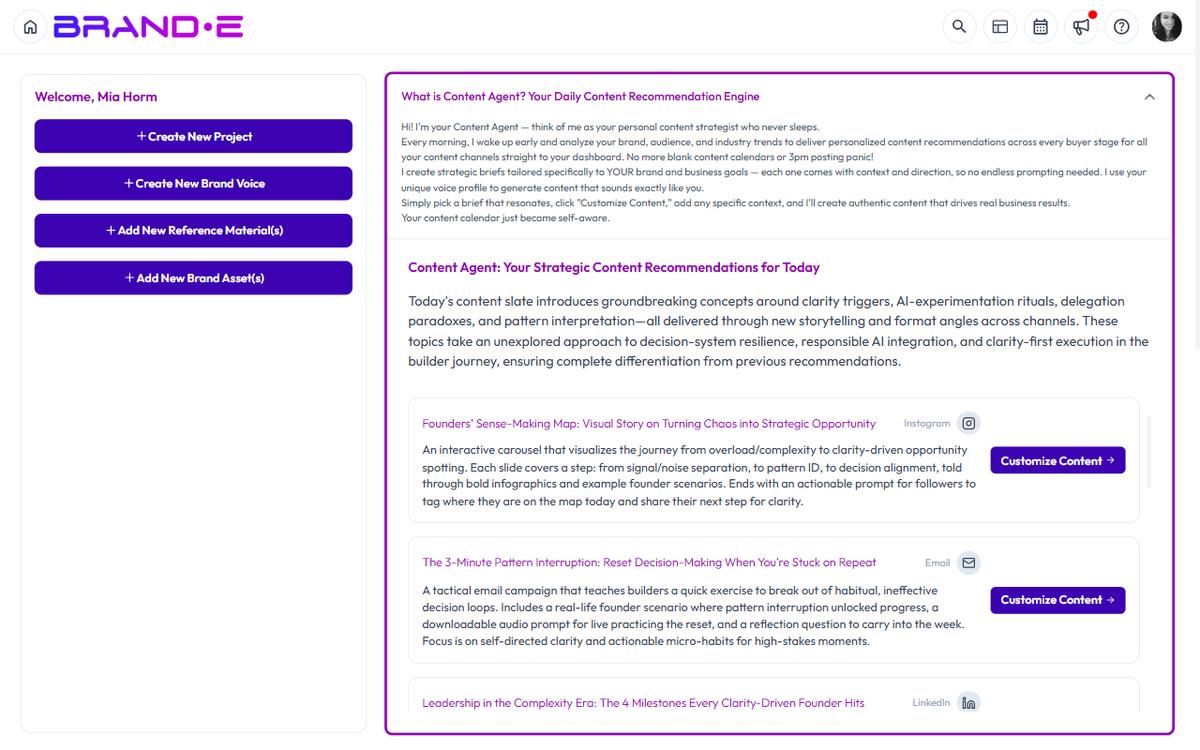
It shows your personalized recommendations, pending projects, calendar, and quick actions—everything you need to stay on track without switching between tabs.
Dashboard at a Glance
When you log in, you see:
Welcome Card A personalized greeting and a key stat (e.g., "You have 2 projects pending approval")
Quick Action Buttons One-click shortcuts to common tasks:
- New Project (Ctrl/Alt+N) — Create a content project
- New Brand Voice — Add a voice profile to this brand
- New Reference Material — Upload brand examples
- New Brand Asset — Store logos and brand guidelines
Content Agent Widget Today's strategic recommendations for your brand, with action buttons for each
Content Calendar Widget Weekly/Monthly/Quarterly view of your projects and scheduled content
Quick Links Fast navigation to account pages:
- Account
- Brand Profile
- Brand Voice
- Brand Materials
- Brand Messaging
- Content Reference
- Content Opportunities
- Snippets
Project Status Overview
- Scheduled/Recent Projects — Upcoming and recently created work
- Recent Folders — Folders you've been using
Billing Card Your current plan and upgrade option
Support Links to Help Center, documentation, feedback, and support
Welcome Card
The welcome card greets you by name and displays a key stat to set priorities for the day:
- "You have 3 projects pending approval" → Focus on client sign-offs
- "6 recommendations ready to convert" → Create projects today
- "Your content calendar is empty next week" → Plan ahead
This gives you immediate context and direction.
Quick Action Buttons
Four buttons for the tasks you do most:
New Project (Ctrl/Alt+N) Opens the project creation dialog. Choose a template, configure variables, and start creating.
New Brand Voice Create a new voice profile for this brand if you manage multiple tones or personas.
New Reference Material Upload brand examples, blog posts, videos, or documents to improve Brand DNA.
New Brand Asset Store logos, brand guidelines, color palettes, or visual standards.
These buttons are shortcuts. You can also access these features from the Account sidebar.
Content Agent Widget
The strategic engine of your dashboard.
Displays:
- Summary — A brief overview of today's content strategy
- List of recommendations — Each shows:
- What to create (topic title)
- Why it matters (one-sentence summary)
- Channel icon and name (LinkedIn, Email, Blog, etc.)
- Action button ("Go to Project" if exists, "Customize Content" if new)
Click "Customize Content" to create a project from that recommendation. The recommendation's topic becomes your project brief.
If no recommendations appear:
- Your Brand Profile is incomplete (update it with audience, objectives, channels)
- Your plan doesn't include recommendations (check My Plan)
- Content Agent hasn't generated for your time zone yet (check back in an hour)
If an error appears:
- Refresh your browser
- Check your internet connection
- Contact support if the error persists
Content Calendar Widget
Visual representation of your content schedule.
View Options: Click the view toggle to switch between:
- Weekly — Projects grouped by week, easier for weekly planning
- Monthly — Projects grouped by month, easier for seasonal planning
- Quarterly — Projects grouped by quarter, easier for annual roadmaps
Calendar Settings: Click the settings icon to adjust:
- Hide Weekends — Remove Sat/Sun from the view (cleaner work-focused calendar)
- Open From — Start time for your work day (e.g., 9 AM)
- Close At — End time for your work day (e.g., 6 PM)
- Week Starts On — Choose Monday or Sunday as first day of week
Pending Projects Area: Projects you haven't scheduled yet appear in a "Pending Projects" section above the calendar.
Drag a pending project onto a calendar date to schedule it for that day. The project moves from Pending to the calendar.
Once scheduled, the project appears with:
- Project title
- Status badge (Planning, In Progress, Pending Approval, Published)
- Color coding by status
Click Add to Calendar button on any project to schedule it without dragging.
What You Can Do:
- Drag projects to new dates to reschedule
- Click a project to open it
- Mark the calendar as empty to spot gaps
Quick Links Section
Jump directly to frequently used Account pages:
Account Pages (Brand-Specific)
- Account — General account settings
- Brand Profile — Edit your Brand DNA
- Brand Voice — Manage voice profiles
- Brand Materials — Store assets and guidelines
- Brand Messaging — Configure your messaging framework
- Content Reference — Store reference materials
- Content Opportunities — View all recommendations
- Snippets — Reusable text blocks
When you switch brands (using the profile dropdown), these links update to point to the new brand's pages.
Why Quick Links? Instead of navigating through the Account sidebar every time, these links get you there in one click.
Project Status Overview
Scheduled/Recent Projects List of your upcoming projects and work you've been doing recently:
- Project name
- Status (Planning, In Progress, Pending Approval, Published)
- Created/modified date
- Assigned to (if team members are involved)
Click any project to open it for editing.
Use this to quickly get back to work without searching.
Recent Folders Folders you've accessed recently:
- Folder name
- Number of projects inside
- Last modified date
Click to open the folder and see all projects within it.
This helps you organize work by campaign, client, channel, or time period.
Billing Card
Shows your subscription status:
- Plan name — Your current plan (Starter, Pro, Agency)
- Renewal date — When your subscription renews
- Trial status — If you're in a trial, how many days remaining
- Upgrade link — Click to upgrade plans
- Manage Billing — Update payment, view invoices
Click Upgrade to see available plans. Click Manage Billing to change payment method.
Support Section
Quick access to help:
Help Center Opens a modal with three cards:
- "Review the Docs" → Brande.ai documentation
- "Submit a Support Ticket" → Contact our support team
- "Share Product Feedback" → Suggest features or improvements
Documentation Links to Brande.ai help articles and guides (brande.ai/docs)
Feedback Share product feedback, feature requests, or bug reports
Support Contact our support team for urgent issues
Dashboard Workflow Tips
Morning Routine (15 min)
- Check the Welcome Card — what's the priority today?
- Review Content Agent recommendations — what should you create?
- Check your Content Calendar — what's due this week?
- Click "New Project" for your top recommendation
Weekly Review (30 min)
- View Content Calendar in Monthly view
- Identify gaps in your schedule
- Drag pending projects to dates
- Schedule projects for the next 7 days
Plan Updates (10 min) Quarterly check your Billing Card and plan level. Are you hitting your recommendation or project limit? Time to upgrade?
Switching Brands
If you manage multiple brands (agency), click your profile icon (top right) > select a brand from Brands dropdown.
The dashboard refreshes immediately to show that brand's:
- Content Agent recommendations
- Projects and calendar
- Recent work
The Quick Links and all other sections update to show that brand's data.
Troubleshooting
Q: The Content Calendar shows no projects. A: Projects may not be scheduled. Drag pending projects onto calendar dates using the drag handle, or use "Add to Calendar" button on projects.
Q: Content Agent widget shows "Error loading recommendations." A: Refresh your browser. If error persists, check that your Brand Profile is complete. If still failing, contact support.
Q: I don't see the Billing Card. A: Scroll down on the dashboard. If you still don't see it, check your subscription status in Account > My Plan.
Q: Can I customize which widgets appear? A: No. The dashboard layout is fixed today — every user sees Welcome, Content Calendar, Quick Links, Recent Projects, and Recent Folders in the same order.